
The Duplicate Invoices and Invoice Errors tabs include a bulk action functionality that enables you to update multiple column values for selected rows at once, instead of updating individual values for each row.
Note: The bulk actions feature only enables you to update a predefined list of columns, which depends on the selected tab. To learn more about table columns in each tab, see:
To use bulk actions:
- Navigate to the Duplicate Invoices or Invoice Errors tab.
- Select the rows you want to update:
- Locate the checkbox column to the far left of the table.
- To select the rows you want to update, either:
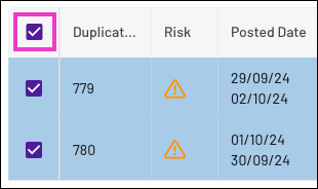
- Click the checkbox in the column header to select or deselect all rows
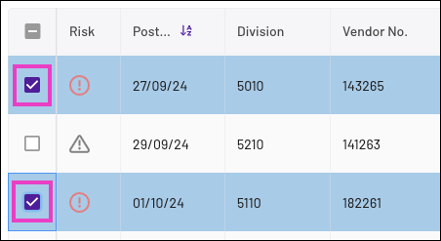
- Click individual checkboxes beside the rows you want to update
Note: When you select individual rows, the icon in the column header checkbox turns grey to indicate that individual rows are selected.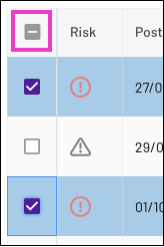
Once you select the checkboxes, a Bulk Actions button appears above the table. The parenthetical indicates the number of selected rows.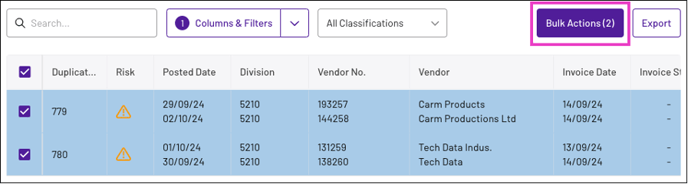
- Click the checkbox in the column header to select or deselect all rows
- Click Bulk Actions to open the Bulk Actions pop-up.
- Set values for the column(s) you want to update for each row, and click Apply.
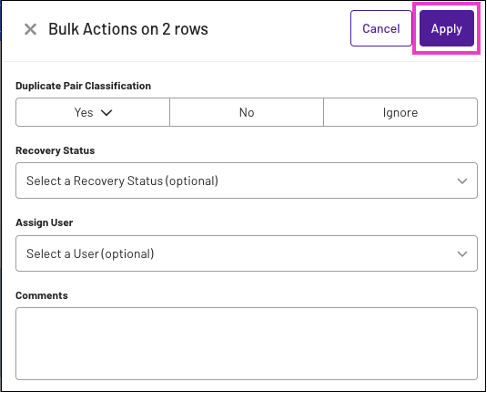
After you click Apply, the Bulk Actions screen closes and an alert indicates whether the invoices successfully updated.