The Invoice Errors table displays information about potential invoice errors in your account. You can add or remove table columns, which include specific information about each invoice error (e.g., Due Date, Invoice Status, Payment Terms, etc.). This article describes the following topics:
Column Descriptions
The Invoice Errors table includes a set of default columns and a number of optional ones:
Default Columns
The following columns appear by default, and can’t be removed from the table:
|
Column |
Description |
|
Assigned User |
User from your organisation assigned to investigate the errors. |
|
Closed Date |
Date the invoice was paid. The column is set to Open if the duplicate invoices are still pending or undergoing investigation. |
|
Error Type |
Type of error identified in the invoice:
|
|
Internal Ref. |
Internal reference number assigned by the ERP. |
|
Invoice Amount |
Amount of the invoice. |
|
Invoice Date |
Date of the invoice. |
|
Invoice Error Classification |
Classification set by the user, which is used to train Xelix’s error detection capabilities by indicating whether the invoice has errors:
|
|
Invoice No. |
Number of the invoice. |
|
Posted Date |
Date the invoice was posted to the ERP (enterprise resource planning). |
|
Recovery Status |
Current status of the invoice error:
|
|
Risk |
Icon that represents if the invoice likely has errors:
|
|
Vendor No. |
Unique identifier assigned to the vendor. |
Optional Columns
You can add the following columns to the Invoices Errors table as desired:
|
Column |
Description |
|
Age (Days) |
Number of days since the duplicate invoice was flagged by Xelix. |
|
Approved By |
User from your organisation who approved the Invoice Error. |
|
Currency |
Currency of the invoices. |
|
Description |
Description of the invoice imported from the ERP system. |
|
Division |
Division of the organisation where the invoice originates. |
|
Division Ref. |
Reference number of the organisation division where the invoice originates. |
|
Document Image |
Image(s) (e.g., PDF files) for the invoices. Each available image is shown as a file icon in the cell. Click a file icon to display the image in a new browser tab. |
|
Document Type |
The category or classification of a document. Note: Listed document types are defined by the ERP system. |
|
Due Date |
Date when payment for the invoices is due. |
|
Email Address |
Email address of the primary contact. |
|
Entered by |
User from your organisation who entered the invoice in your system. |
|
Identified Date |
Date when the tool identified the erroneous invoice. |
|
Invoice Status |
Current status of the invoice:
|
|
Latest Comment |
Most recent comment in the Comment field. |
|
Last Actioned Date |
Date when a user from your organisation updated a field for the invoice. |
|
Last Actioned By |
User from your organisation who last updated a field for the invoice. |
|
Open |
Investigation state:
|
|
Payment Terms |
Invoice payment terms from the ERP system. |
|
PO Number |
Purchase order number. |
|
Primary Contact Name |
The main person of contact. |
|
Region |
Region where the invoice is posted. |
|
Spend category |
Spend category where the invoice is posted. |
|
Status |
Status of the invoice. |
|
Supplier Contact |
Vendor contact. |
|
System |
The organisation’s ERP used to track their finances. |
|
Vendor |
Name of the vendor who issued the invoice. |
|
Vendor Group |
Collection of vendors categorised in the Xelix settings. To learn more, see Vendor Settings (coming soon). |
Add or Remove a Column
To add or remove a column from the Invoices Errors table:
- Navigate to the Invoice Errors tab.
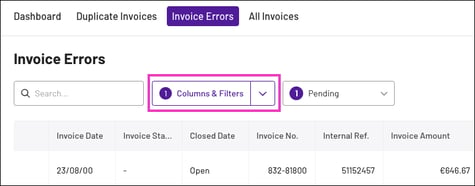
- Click Columns & Filters to open the column menu.
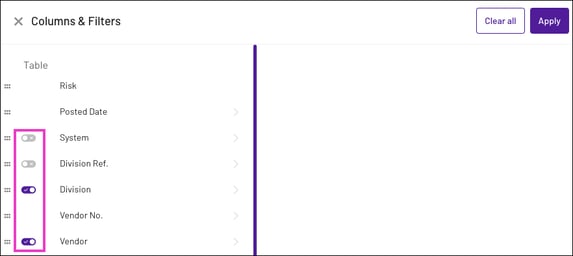
- To the left of each column you want to add or remove, click the switch to enable or disable the column.
- If the switch is purple, the column is enabled.
- If it’s grey, it’s disabled.
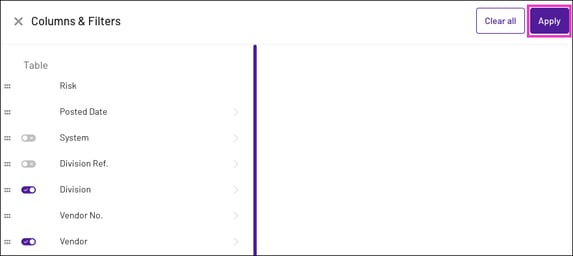
- Click Apply in the top-right corner to update the table.