
Contents:
-
Set your share schedule (when exports send)
1. What is Auto Share?
Auto Share sends reconciliation exports to your vendors on a schedule you set.
Instead of manually exporting and emailing results each time, you can:
- choose which reconciliations should be queued for sending
- set when exports are sent (daily, weekly or monthly)
- review and fix any items that need attention before they send
Auto Share is part of our Touchless reconciliation workflow, alongside Auto‑reconcile and Triggers.
2. How to set up Auto Share
You can configure Auto share in Statement settings.
- Go to Statements.
- Open Statement settings.
- Select Auto share.
- Toggle ‘Share queue’ on.

3. Define your share queue rule
Your share queue rule decides which reconciliations are added to the Auto Share queue.
In Share queue:
- Choose the field you want to evaluate (for example, All actions)
- Choose whether actions are or are not specific values
- Select one or more action values
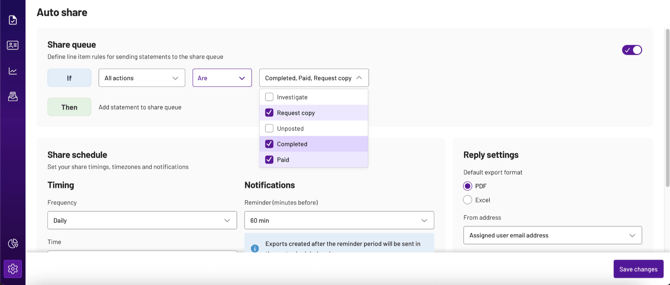
Common action values include:
- Investigate
- Request copy
- Unposted
- Completed
- Paid
- Any custom actions you’ve created
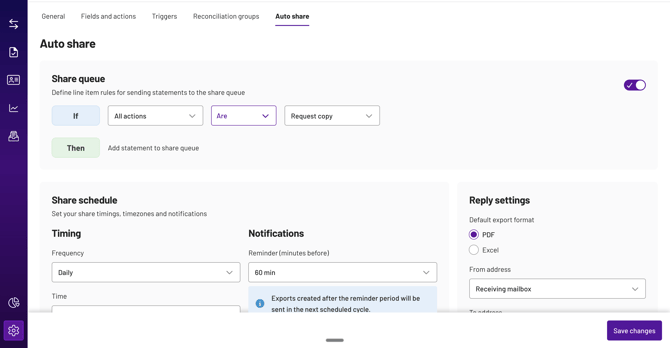
Example rule: queue anything that needs a vendor response
A typical setup is to queue reconciliations where actions include Request copy.
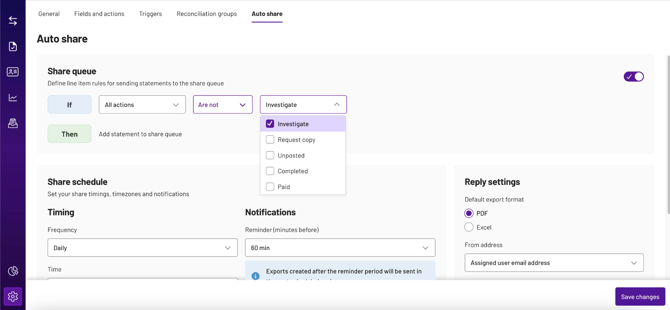
Example rule: avoid auto-sharing investigations
You can also queue only items that are not Investigate, so you avoid sending results that still need internal review.
💡 Note: If you update your rule after you already have items in the queue, you can remove items from the queue. See section 7 for details.
4. Set your share schedule (when exports send)
💡 Note: Auto share does not stop you from exporting and sharing results manually. Any manual exports will appear as “Shared” under the status column in the Sent queue.

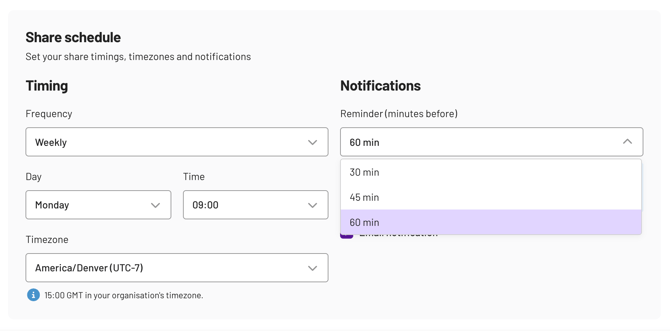
In Share schedule, set when Auto share runs.
4.1 Choose a frequency
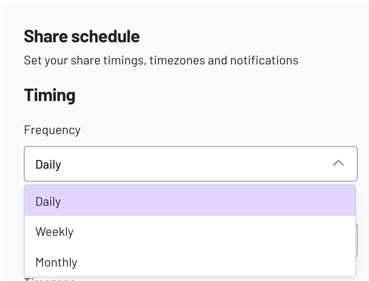
You can send exports:
- Daily
- Weekly
- Monthly
4.2 Set your time and timezone
Choose the time Auto share should run.
If you select Weekly, you will also choose a day (for example, Monday).
4.3 Notifications (optional)
You can enable an email reminder before exports are sent. This will send an email reminder to every Xelix user in your team.
- Toggle Email notification on
- Choose when the reminder is sent:
- 30 minutes before
- 45 minutes before
- 60 minutes before
💡 Note: Exports created after the reminder period will be sent in the next scheduled cycle
5. Choose reply settings (how emails are sent)
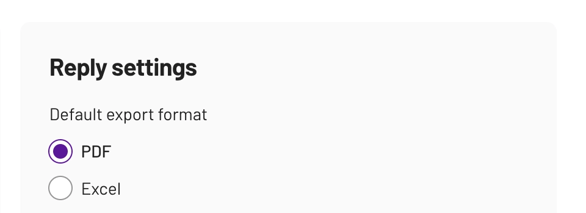
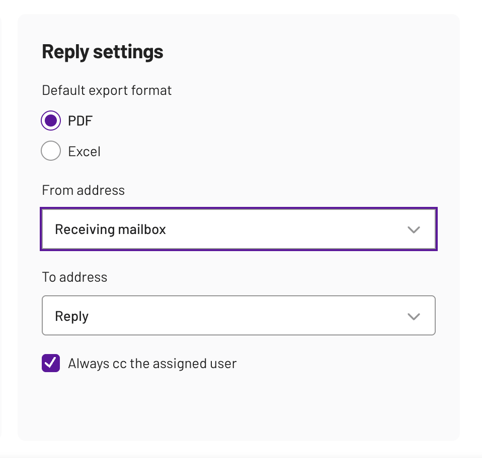
Reply settings control the default export format and email routing.
5.1 Default export format
Choose the default file format:
- Excel
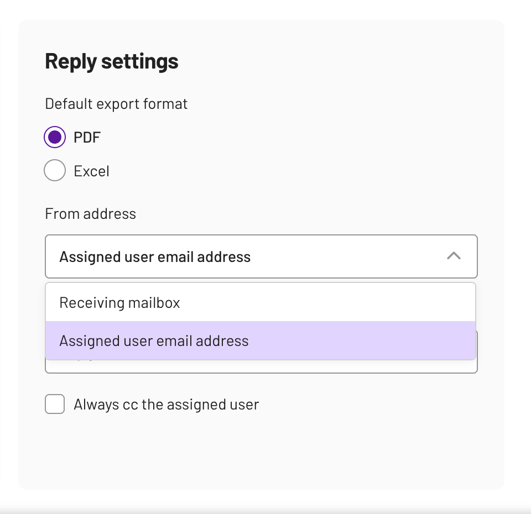
5.2 From address
Choose who the email is sent from:
- Receiving mailbox (recommended for organisations using Helpdesk integration): the mailbox that received the original statement from the vendor.
- Assigned user email address: the email address of the user that owns this reconciliation
💡 Note: If you send from the assigned user email address, make sure the reconciliation has an assigned user. If not, the export may require review.
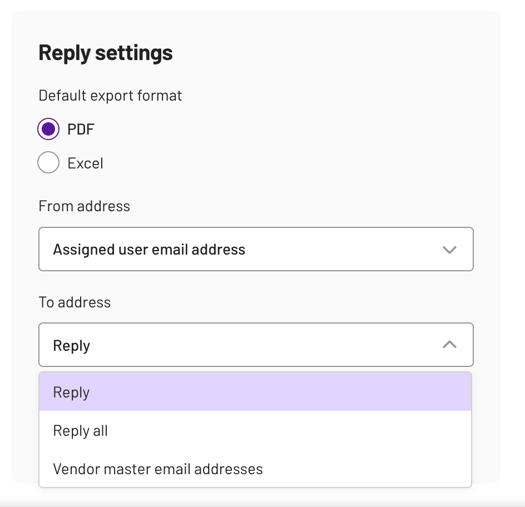
5.3 To address
Choose who receives the export email:
- Vendor master email addresses: sends the export to the vendor contact email addresses saved in your vendor master data.
💡 Note: We select the vendor email address assigned to the reconciliation, not the corresponding Helpdesk ticket (if there is one)
-
Reply: sends the export to the email address that originally emailed the statement (the sender of the original email thread).
-
Reply all: sends the export to everyone included on the original statement email thread (the sender plus all original recipients in To and CC).
💡 Note: Enable Always cc the assigned user to keep internal owners in the loop.
6. Review the Auto Share queue
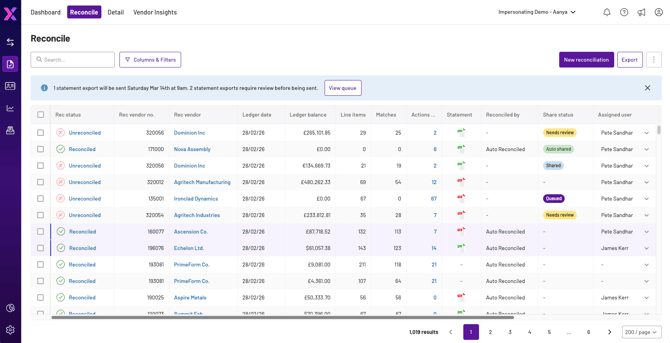
Auto share uses a queue so you can review what will be sent.
You can access the queue from the View queue banner in the Reconcile tab.
6.1 What you’ll see in the queue
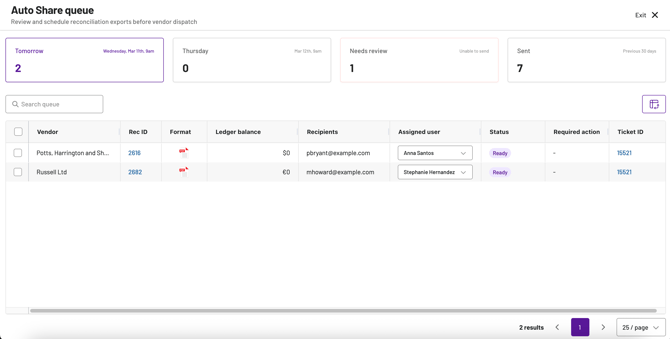
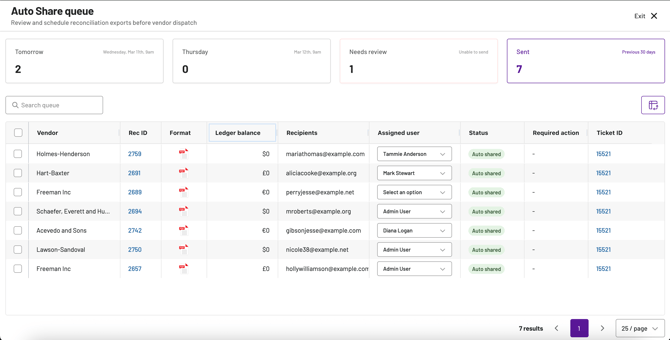
The queue groups items into:
- Today
- Your next scheduled day
💡 Note: If you choose daily sends, this will show "Today” and “Tomorrow." If you choose weekly sends, it will show the day you selected for sending.
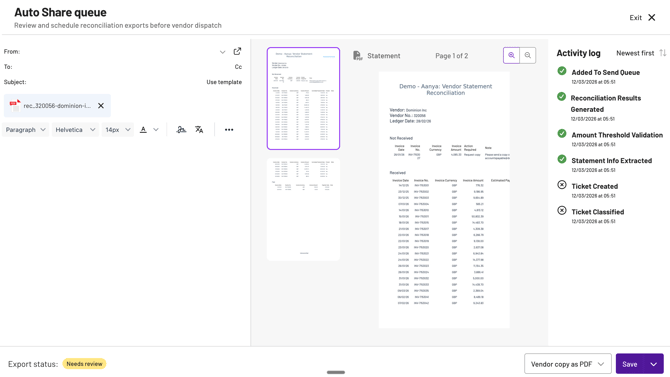
Needs review (unable to send)
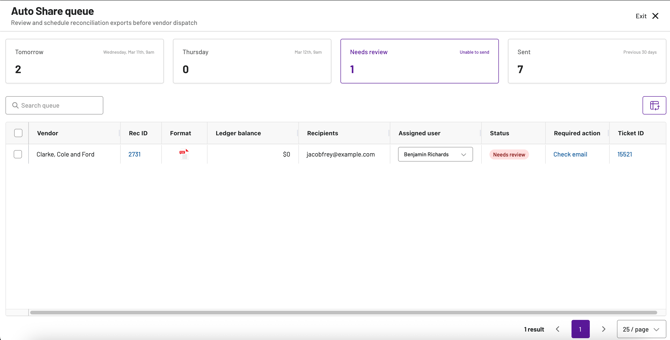
💡 Note: Items marked Needs review cannot be sent until you address the required action.
For example, you may need to:
- check or update recipient email addresses
- confirm the assigned user
-
Sent (history)
6.2 Queue fields
Depending on your setup, you may see:
- Vendor
- Rec ID
💡 Note: click on this to view the reconciliation results
- Format
💡 Note: click on this to view the email format
- Ledger balance
- Recipients
- Assigned user
- Status
- Required action (for items that need review)
- Ticket ID (if applicable)
💡 Note: click on this to view the ticket details on Helpdesk
7. Changing rules when items are already queued
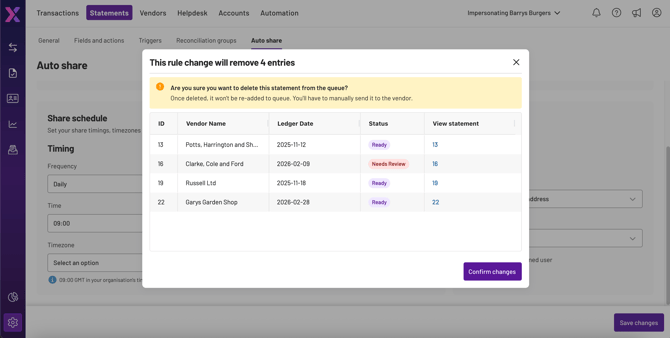
If you change your Auto share rule while items already exist in the queue, Xelix will show a confirmation prompt.
The prompt lists the items that will be removed.
💡 Note: If you remove an item from the queue, it will not be re-added automatically. You will need to share it manually with the vendor.
8. FAQs
Can I still export and share manually?
Yes. Auto share does not stop you from exporting and sharing results manually. Any manual exports will appear as “Shared” under the status column in the Sent queue.

What happens if my notification reminder is on, but a new export is created after the reminder window?
It will send in the next scheduled cycle.
Who should I send to: vendor master email addresses, reply, or reply all?
In most cases, vendor master email addresses are the safest option to ensure exports go to the intended vendor contact.