
Contents:
- What is Auto-reconcile?
- Conditions you can select
2.1. No pending actions
2.2.No edit in "x" days
2.3.Shared with vendor - Where does Auto-reconcile fit with Touchless?
- FAQs
1. What is Auto-reconcile?
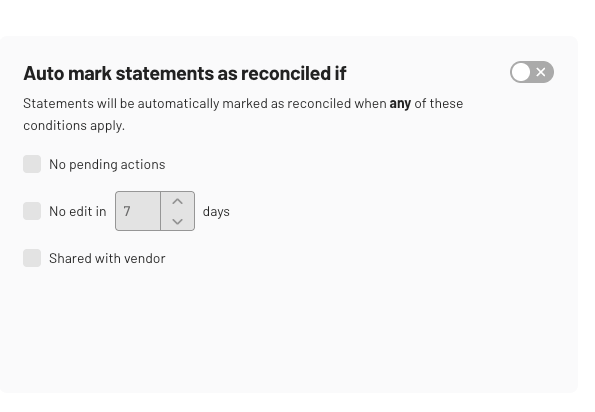
Auto‑reconcile marks statements as reconciled automatically when they meet the conditions you set. This helps your team focus on the exceptions that require review, while compliant, low‑risk statements flow through without manual checks
Located in Statements settings, you’ll find this check-list under General.

💡 Note: Only admins can configure Auto‑reconcile in Statement settings.
Auto-reconcile forms part of our Touchless reconciliation workflow, alongside Triggers and Auto‑Share. 💡 Note: Auto-reconcile also works alongside Auto-created recs for organisations with mailbox integration.
2. Conditions you can select
Auto‑reconcile runs when any selected condition is true. Toggle on the feature, then choose one or more of the following conditions.
2.1 No pending actions
Marks a statement as reconciled when there are no outstanding actions required.
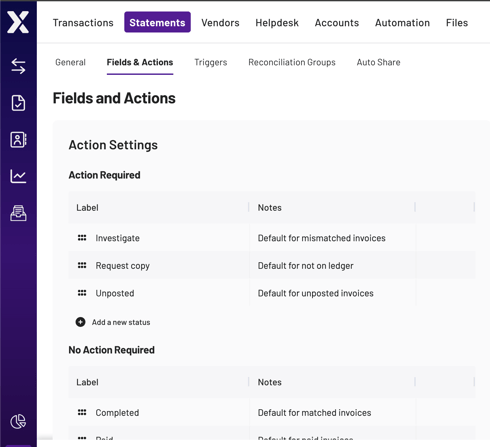
💡 Note: In addition to default Xelix ‘outstanding actions’, admins can define their own additional criteria for actions required. This can be found under the ‘Fields & Actions’ tab in Statement settings.
2.2 No edit in 'X' days
Marks a statement as reconciled if no edits have been made for a set number of days. Use this to let inactive statements settle before they’re marked complete.
💡 Note: Viewing a reconciliation doesn’t count as an edit. An edit only counts when a user makes a change to an existing invoice, or when the system makes a change to an existing invoice when a new invoice comes in.
2.3 Shared with vendor
Marks a statement as reconciled when reconciliation results have been shared with the vendor.
💡 Note: Auto‑reconcile applies when any of the enabled conditions are met. For example, a statement may be marked reconciled either because it has no pending actions or because it hasn’t been edited in the time window you set.
3. Where does Auto-reconcile fit in Touchless?
Auto‑reconcile is designed to work alongside:
- Auto created recs from email 💡 Note: This is conditional for organisations with mailbox integration.
- Triggers: Automates repetitive tasks so more statements meet your criteria.
- Auto‑Share: Queue and send reconciliations to vendors after they’re marked reconciled.
- Matching Tolerance: Define acceptable amount differences between invoice and statement.
Together, these features create a controllable, end‑to‑end Touchless process where you define the rules and keep full oversight.
4. FAQs
Does Auto‑reconcile change my data or exports?
No. It only updates the statement’s reconciliation status. Your audit trail remains intact.
What happens if I change my rules?
Updates affect statements going forward. You can adjust conditions at any time to match your policies.
Can I still reconcile manually?
Yes. You can always review and mark statements as reconciled yourself when needed.