
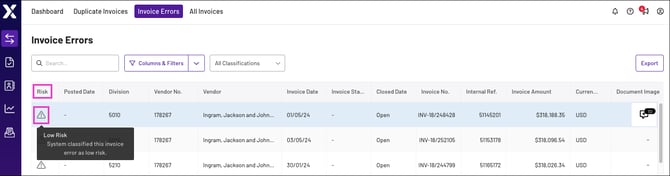
The Invoice Errors tab displays a table of invoices with potential errors, which includes basic information such as severity, date, vendor, and more. The table includes a risk level for each potential error, so you can quickly and easily identify, prioritise, and resolve issues. This article describes the following concepts:
How Xelix Identifies Invoice Errors
Our error detection models are trained on historical data and are periodically redesigned and retrained to improve performance. We use the following processes and AI-powered techniques to identify invoice errors in your account:
- Feature Engineering: We calculate hundreds of data points for each invoice, including comparisons to typical invoice patterns from the same vendor, and use them for our AI or rule-based systems, to identify ledger anomalies
- Model Selection and Hyperparameter Tuning: We select, fine-tune, and optimise our models and their learning behaviours, to ensure errors are accurately and efficiently identified
- Version Control and Experimentation: We track our models’ versions and learning growth, so we can compare each iteration to ensure the program is constantly improving
- Monitoring and Alerting: Our team continuously monitors platform performance and responds to any major alerts
Note: Our development, maintenance, and monitoring processes for Xelix’s error detection capabilities are similar for the duplicate detection feature. We only evaluate single invoices for error detection, whereas we evaluate invoice pairs to detect duplicates.
The Invoice Errors tab identifies errors in the following ledger fields:
- Amount: Amount of the invoice.
- Currency: Currency of the invoice.
- Date: Date of the invoice.
- Number: Number of the invoice.
- Sales tax: Tax on the invoice subtotal.
- Vendor: Name of the vendor who issued the invoice.
Navigate the Invoice Errors Tab
The Invoice Errors tab includes three search and filter options, to help you filter and manage the table:
- Search: Search for specific values in the table
- Columns & Filters: Add or remove information columns from the table, and filter results by column. To learn more, see Columns in the Invoice Errors Tab.
- All Classifications (dropdown): Classification set by the user, which is used to train Xelix’s error detection capabilities:
- Pending: Invoice is pending and has not been classified by a user
- Responded Yes: User set the invoice classification to Yes, signifying the invoice contains errors
- Responded No: User set the invoice classification to No, signifying the invoice does not contain errors
- Responded Ignore: User set the classification to Ignore, signifying the invoice should not impact how Xelix flags invoice errors
