
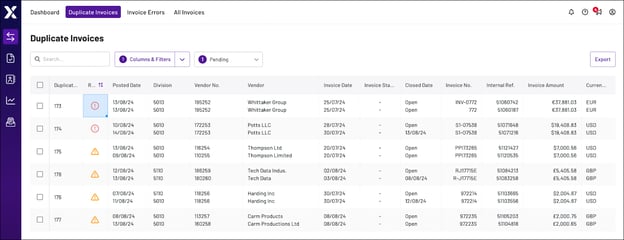
The Duplicate Invoices tab contains a table of potential duplicate invoices within your account, with basic information such as risk, date, vendor, and more. The table groups potential duplicates into pairs and assigns each set a unique Duplicate Pair ID and risk level, so you can more easily reference, assess, and prioritise them.
How Xelix Identifies Duplicate Invoices
Xelix uses the following processes to identify duplicate invoices in your account:
- Simple Rule Detection: We use a set of predefined rules to examine all submitted invoices, and identify pairs with similar invoice numbers, dates, or amounts
Note: Typically, at least two invoice fields must be similar for Xelix to flag them as potential duplicates.
- Detailed Analysis: We calculate over 500 data points for each duplicate pair and feed them into machine learning algorithms to identify likely duplicates
- Risk Rating: Our models examine each duplicate pair and assign them a risk rating, which indicates how confident we are that the invoices are duplicates
Note: We can tailor the duplicate invoice analysis to meet your organisation’s specific needs. To have this done, contact your Customer Success Manager for assistance.
Here are a few common situations that our system might flag:
- Matching Vendor Names: Multiple payments to the same vendor, especially on the same date or for the same amount, are often duplicates
- Similar Invoice Numbers: Duplicate invoices may include repeated invoice numbers with extra characters (e.g. hyphens) or prefixes (e.g.
INV-):-
RJ17715E -
R-J177715E
-
- Similar Vendor Names: Some invoices may abbreviate, misspell, or include prefixes for vendor names, which make the same vendor appear as two different entities:
-
Thompson Ltd -
Thompson Limited
-
Navigate the Duplicate Invoices Tab
The Duplicate Invoices tab includes three search and filter options, to help you manage and filter the table:
- Search bar: Search for specific values in the table
- Columns and filters: Add or remove columns from the table, and filter results by column. To learn more, see Columns in the Duplicate Invoices Tab.
- Duplicate Classification dropdown: Filter the table based on the following classification options:
-
- Pending: Invoice is pending and has not been classified by a user. The Pending classification is applied to all duplicates by default.
- Responded Yes: User set the invoice classification to Yes, signifying the invoices are duplicates
- Responded No: User set the invoice classification to No, signifying the invoices are not duplicates
- Responded Ignore: User set the classification to Ignore, signifying the invoices should not impact how Xelix flags duplicates
Note: The Duplicate Classification dropdown is a quick selection menu, which can also be accessed via the Columns & Filters sidedrawer.
