
Introducing your new, redesigned reconciliation workflow: Rec Composer. We’re upgrading your reconciliation experience by amplifying rec automation speed, adding more features to edit your statements and integrating all the steps into one page. With this upgraded version we’re minimising user input, inching closer and closer to touchless reconciliation…🌟
We’re also allowing for more customisation in Helpdesk by extending your matching scope and adding more customisation to email triggers.
Statements
1. Rec Composer 🔦
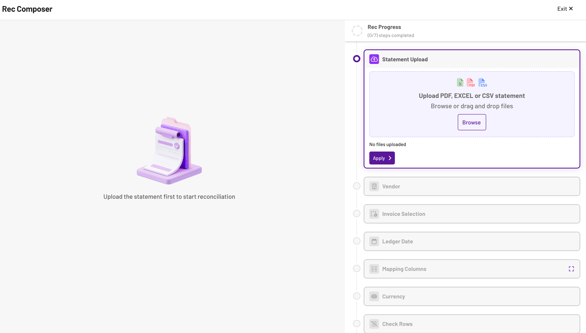
Rec Composer is your upgraded reconciliation workflow, designed to be faster and more streamlined so that you can view and edit all the rec information on a single page.
What’s new?
→ Upload & reconcile multi-currency statements
→ Bulk upload and reconcile multiple Excel files
→ Rotate a statement by clicking on the rotation icon under Invoice Selection
→ Review and exclude rows from your rec
→ Reconcile without a statement for an audit trail
To learn more about how to manually reconcile using Rec Composer, we have a step-by-step guide available here. This guide will take you through each step and equip you with all the things you need to know to upgrade your reconciliation experience.
2. Breakdown of missing invoices & credits received
Click on the Missing Invoices Received and Missing Credit Received widget in your Statements Dashboard to be taken to the Detail tab to get a line-item overview missing invoices and credits.
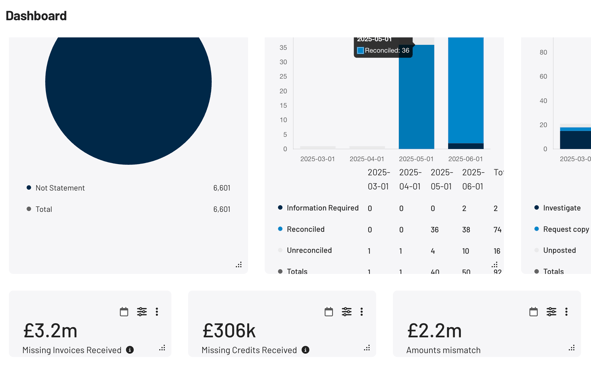
Note💡: We don't include any amount mismatches in this widget, which may be the reason you can only see a few credit notes. Amount mismatch is a separate widget with its own clickthrough in your Dashboard.
3. Sort & filter the Recent Changes column on the Reconcile page
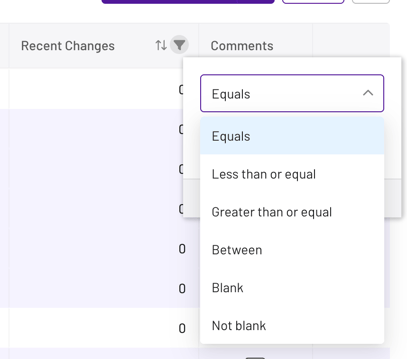
You can filter line items in your reconciliation by amount of invoice changes by selecting the desired filters in the Recent Changes column of your reconciliation results.
→ Streamline the reconciliation process by sorting and filtering invoices with recent changes and stay on top of your recs
4. Linking inboxes to Regions, Divisions & Systems for vendor automation
To improve the accuracy of vendor suggestions and enhance automation, we’re now linking each of your inboxes to specific region(s), system(s) or division(s), whichever makes the most sense for your team.
💡 Please get in touch with your dedicated Customer Success Manager to facilitate this
5. Find & replace Prefix & Suffix
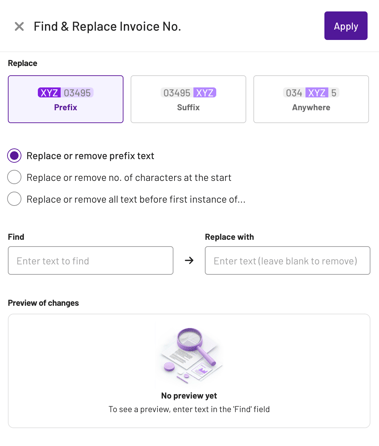
Instead of editing data, bulk remove or replace invoice prefix or suffix data in line with your business needs so you don’t have to map columns with each rec. You’ll find this button on your rec results page.
→ Save time by avoiding the need to map columns during each reconciliation
→ Consistently apply prefix or suffix changes across multiple invoices to ensure data uniformity
Helpdesk
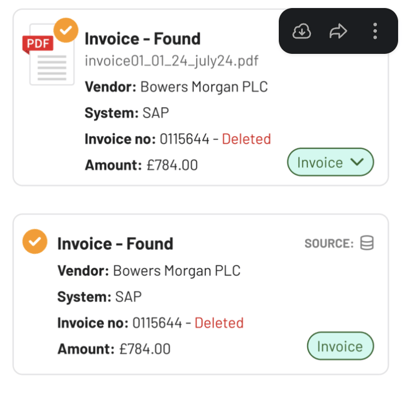
1. Match to deleted invoice
You can now match vendor-queried invoices to deleted or rejected invoices in the ledger. These matches will show up in the side panel, styled to indicate their deleted status.
→ Expand your query resolution capabilities by matching discrepancies with deleted or rejected invoices
2. Trigger exclusion list and sending limit
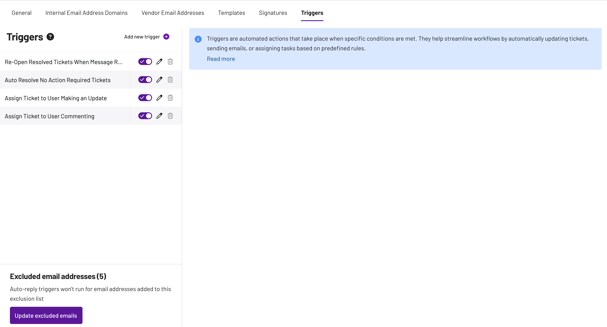
We’ve updated our triggers functionality so you can choose who receives automatic replies by excluding specific addresses. We’ve also introduced a cap on the number of automated replies for each thread and for each sender.
Together, these features prevent auto-reply loops and ensure responsible, controlled automation
- Trigger Exclusion List - define email addresses you want to exclude from automated replies
- Sending Limits - set caps on the number of automated replies per conversation thread and per sender
3. Helpdesk Drafts
When you’re composing messages, drafts are saved every two seconds, retaining all text and attachments.
