
This guide demonstrates how to add, remove, and filter columns across the Ledger, Statement, and Actions panels, using a range of date and amount-based filters. With these customisation options, you can focus on the most relevant information and streamline your reconciliation process 🪄
On the top left of the table, the Columns & Filters button allows you to customise the columns displayed in each panel (Ledger, Statement and Actions). You can add or remove columns by enabling or disabling the toggles in the pop-up list.
💡 Tips for using Columns and Filters:
Click ‘Apply’ (top left) to save your selections.
Click ‘Clear All’ to remove all selections.
Click ‘Reset’ (after making individual selections) to clear the current selection.
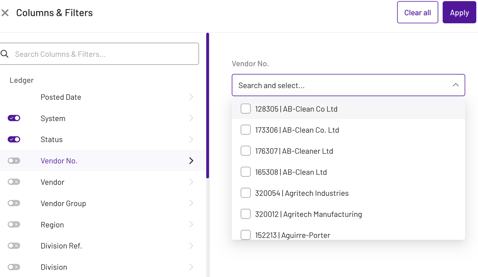
Many columns offer further filtering options to refine the table data. These common filter types are available for date and amount-based columns:
Date Filters: (Available for Posted Date, Invoice Date, Due Date, Closed Date)
- Equals: displays entries on a specific selected date
- Current: displays entries within the current week, month, year, or financial year
- Previous: displays entries within the last specified number of weeks, months, years, or financial years
- After: displays entries after a selected date
- Before: displays entries before a selected date
- In range: displays entries between two selected dates
Amount Filters: (available for Invoice amount, Open amount, Difference, Difference in amount, Invoice amount (ledger and/or statement prioritised))
- Equals: displays entries matching a specific amount
- Less than or equal: displays entries less than or equal to a specified amount
- Greater than or equal: displays entries greater than or equal to a specified amount
- Between: displays entries within a specified amount range
- Blank: displays entries with no value in this field
- Not blank: displays data populated in this field
The following are the optional columns, organised by panel:
Ledger
- Posted Date: view and filter invoices by their ledger posting date
- Vendor No.: search and select vendors by their assigned number
- Vendor: search and select vendors (listed alphabetically)
- Vendor group: search and select from your created vendor groups
- Region: search and select by identified region(s)
- Division Ref: search and select by division reference
- Division: search and select by division
- Invoice Date: view and filter invoices by invoice date
- Due Date: view and filter invoices by invoice date
- Closed Date: view and filter invoices by their payment closed date
- Invoice No.: search and select invoices by their number.
- Internal Ref: view invoices by your internal reference number.
- Invoice amount: filter invoices by their total amount
- Open amount: filter invoices by their remaining open amount
- Currency: View invoices by selected currencies.
💡 Note: if your IT team added custom fields to the daily file that gets sent to Xelix, they will appear here e.g. Invoice status, PO number, Payment block.
Statement
- Invoice date: view and filter invoices by invoice date
- Invoice No.: search and select invoices by their number.
- Invoice amount: filter invoices by their total amount
💡 Note: if your IT team added custom fields to the daily file that gets sent to Xelix, they will appear here too.
KPIs
- Difference: lists the amount difference identified by Xelix after reconciliation
- Difference in amount: lists the amount difference for invoices with mismatched amounts (e.g., credit notes)
- Invoice amount (ledger prioritised): prioritises ledger amount over statement amount where there are mismatches
- Invoice amount (statement prioritised): prioritises statement amount over ledger amount where there are mismatches
- Ledger balance at ledger date: identifies which invoices are included within the ledger balance
- Unposted at ledger date: identifies if the invoice was unposted on the ledger date
- Unposted now: identifies if the invoice is currently unposted
- Credit: identifies if the item is a credit note (here we will prioritise statement amount over ledger amount where there are mismatches)
- Clean match: identifies invoices which have identified without a mismatch or difference (either in invoice amount, invoice date, vendor, division, currency, obsoleted/deleted)
- Missing: identifies if the invoice copy is missing from your system. It also identifies a line as missing where the invoice was recorded as a credit note, or where the credit note was recorded as an invoice.
- Paid/closed now: identifies if the invoice has been paid/closed
- Exact match: identifies invoices where the invoice number exactly matches, rather than a number clean match
Actions
- Latest comment: displays the most recent comment for the line item
- Vendor note: displays any vendor notes associated with the line item
Click here to learn how to read an example reconciliation results - what assigned actions mean in a real context and what steps to take.