
This guide explains how to interpret the 'Pending' actions in the Actions panel. Learn how Xelix identifies invoices that need your review, from vendor mismatches and workflow posting issues to missing invoice copies and amount differences. We also highlight how to use the comments feature for internal and external collaboration 🤝
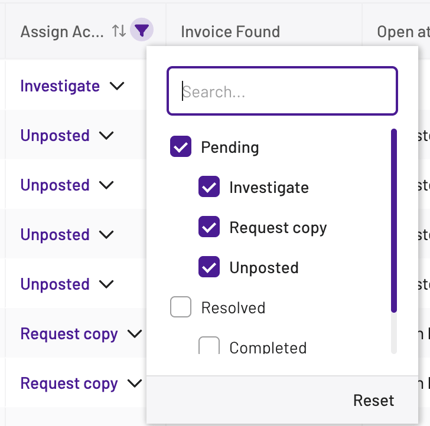
If you change the filter under Assign Actions → Pending, Xelix will display only the invoices that still require attention aka those that need your review.
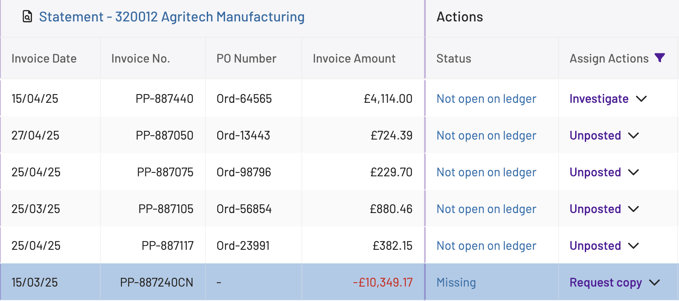
- Let’s examine the first line. In the Actions panel, Xelix shows that the invoice has been found in your ERP (SAP), but it’s assigned to a different vendor. If you hover over the entry, Xelix will display the name of the vendor it’s been matched to - in this case, Agritech Industries.

💡 Xelix reconciles against your entire invoice population, not just the invoices listed on the statement, allowing it to flag differences like this.
- Next, there are four lines where invoices are stuck in your workflow system (Coupa). These invoices have statuses like On Hold or Pending Approval - which is why they’re marked as Unposted in the Assigned Actions column. These require investigation. You can follow up on why they haven’t progressed to the ERP, and if you choose, you can update the assigned action in bulk once the issue is resolved.
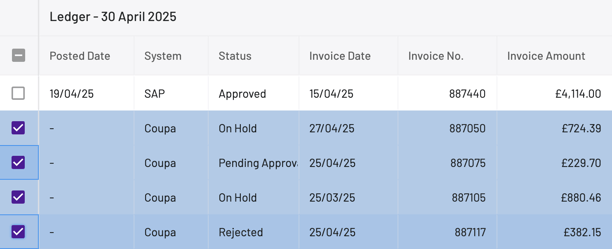
💡 Note: ‘Status’ here is a custom field. If you have custom fields in your ERP or workflow that would help you investigate results of reconciliations, you should speak to your Customer Success Manager to onboard.
- You’ll also notice one invoice line where the value is displayed in red font - this indicates a credit note or a missing invoice. Since Xelix cannot locate this invoice or credit note in your system(s), it flags the action as Request Copy. This helps ensure that the credit or invoice is properly documented and processed.
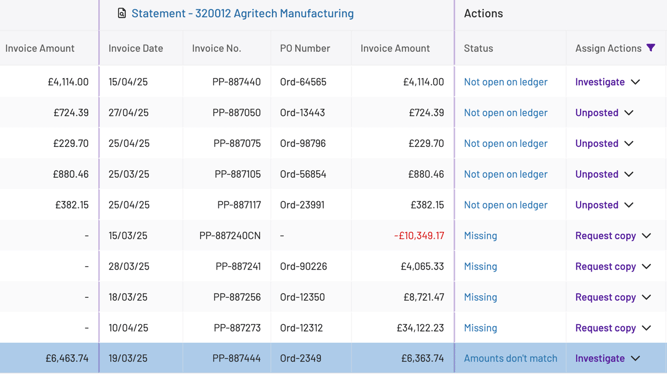
- The next three lines are similar - these invoices are completely missing and require the Request Copy action to be fulfilled.

- On the final line, Xelix has found a matching invoice on the ledger, but the amount does not match the one listed on the statement. This is flagged as an Amounts Don’t Match difference. In this case, Xelix has prevented an overpayment of £100, highlighting its proactive approach to reconciliation - helping you avoid errors before a potential incorrect payment.
- Finally, the Comments feature in the far-right column of the Actions panel. Click the comment icon to:
- Leave internal notes for context e.g., manual changes made
- @Mention a colleague for follow-up. The colleague will be notified by email if email notifications are turned on.
- Attach a supporting file
- Or choose Note to Vendor, which will appear on the exported vendor copy of the reconciliation
Xelix constantly receives new data from your incoming daily files. This allows us to update your recs in the system with new data. Some of these changes are automatic and some need your review. Click here to learn more about how we review changes and our logic behind this.