The Transaction Dashboard contains a library of reports on your invoice history and issues, which you can add to the dashboard. The following sections describe how to:
Note: To learn how to rearrange reports in your dashboard, see Organise Dashboard Reports.
Add a Report
To add a report to the Transactions Dashboard:
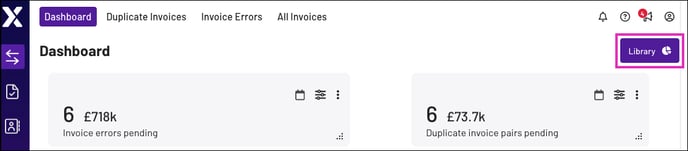
- Click Library near the top-right corner to display the report library.
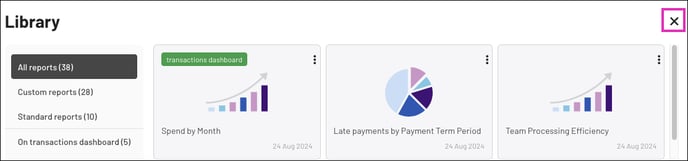
- In the Library pop-up, identify which report you want to add.
Note: Use the categories on the left to locate the desired report.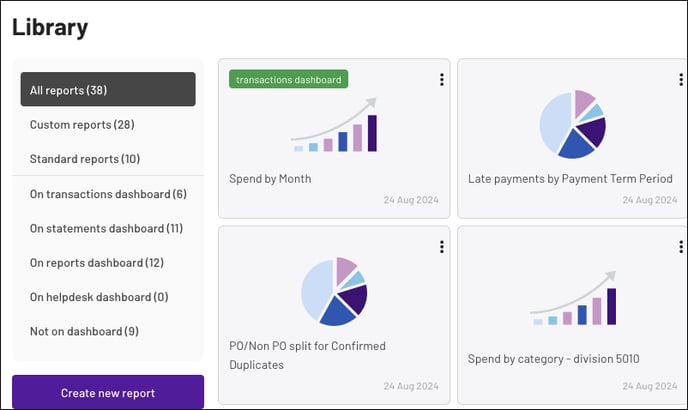
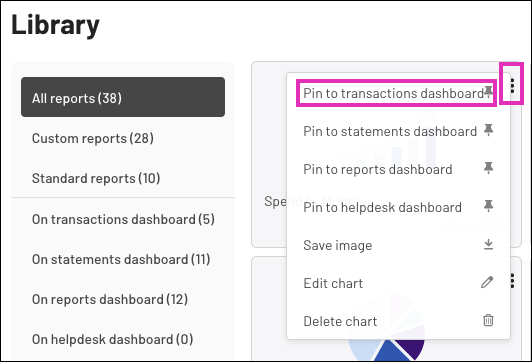
- On the report tile, click the more icon (three vertical dots) near the top-right corner, and select Pin to transactions dashboard. This adds the report to the bottom of your dashboard.
- To return to the dashboard, click the X icon or outside the Library pop-up.
Remove a Report
To remove a report from your dashboard:
- Locate the report you want to remove.
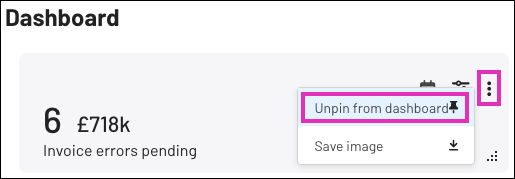
- Click the more icon (three vertical dots), and select Unpin from dashboard. This removes the report from your dashboard.