The Invoices Errors tab includes tools to help you classify and resolve potential errors in your invoices. The following subsections describe how to resolve errors in the:
Invoice Errors Table
The Invoice Errors tab displays a table of potential invoice errors in your account and includes options to resolve them:
- In the Invoice Errors tab, locate the error you want to resolve.
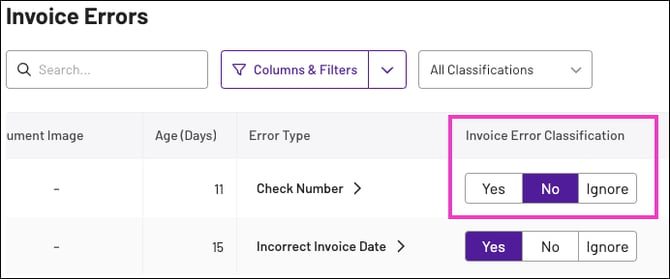
- Locate the Invoice Error Classification column and select one of the following values:
- Yes: Invoice contains the specified error and Xelix should flag similar items
- No: Invoice doesn't contain the error and Xelix should not flag similar items
- Ignore: Invoice should be ignored and Xelix should not use it for AI training
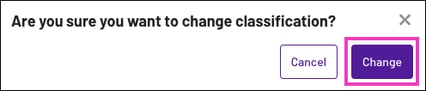
- Click Change when prompted.
Note: A confirmation message appears at the top-right of the screen.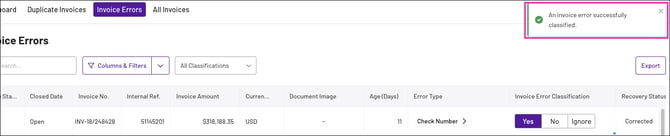
- Locate the Recovery Status column and select one of the following values:
- - (No status): No action taken yet
- No action required: No action required to resolve the invoice
- Action Required: Additional action is required to resolve the error
- Recovered: Payment was recovered from the vendor post payment run
- Corrected: Invoice was corrected prior to the payment run
- Pending Correction: Error is pending a resolution
Note: You can add, remove, or reorder available recovery statuses in the Transactions Settings page. To learn more, see Transactions Settings (coming soon).
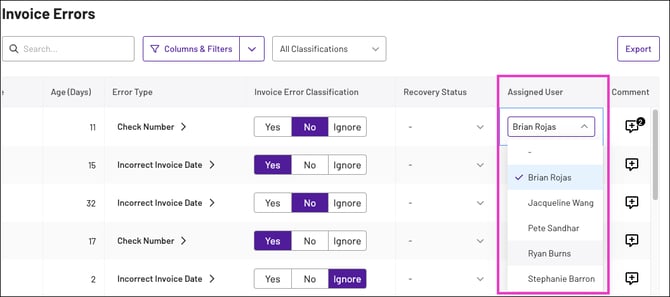
- Locate the Assigned User column, and select a user from your organisation to resolve the issue.
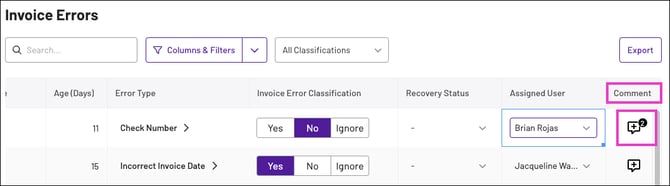
- (Optional) In the Comment column, click the comment icon to add a note about the invoice.
Error Type Page
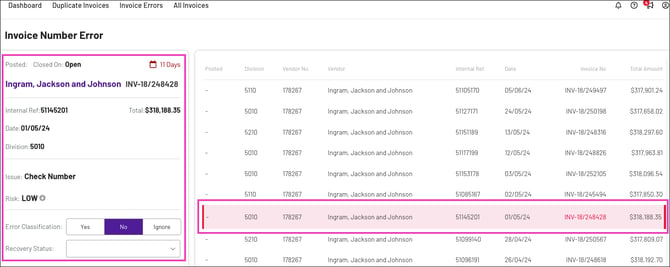
The Error Type page displays a list of all invoice errors in your account for a specified type. The control menu on the left enables you to view and resolve selected invoice errors.
To access the page, select an error type in the Invoice Errors tab. This opens the corresponding Error Type page in a new browser tab and highlights the selected invoice error (e.g. if you select the Check Number error type, the Invoice Number Error page opens).
To resolve an error in the Error Type page:
- Locate the error you want to resolve.
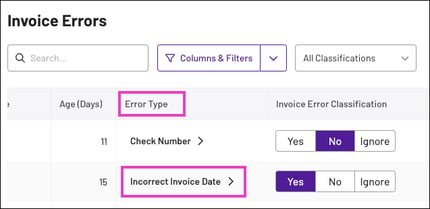
- Click the error type beside the error you want to resolve. This opens the Error Type page to the selected error type and automatically opens the selected error.
-
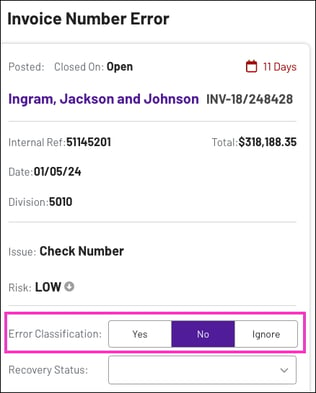
On the left side of the browser tab, select one of the following Error Classification values:
- Yes: Invoice contains the specified error and Xelix should flag similar items
- No: Invoice doesn't contain the error and Xelix should not flag similar items
- Ignore: Invoice should be ignored and Xelix should not use it for AI training
- Click Change when prompted.
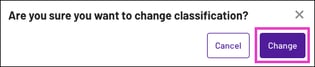
Note: A confirmation message appears at the top-right of the screen.

- Locate Recovery Status on the left and select one of the following values:
- - (No status): No action taken yet
- No action required: No action required to resolve the invoice
- Action Required: Additional action is required to resolve the error
- Recovered: Payment was recovered from the vendor post payment run
- Corrected: Invoice was corrected prior to the payment run
- Pending Correction: Error is pending a resolution
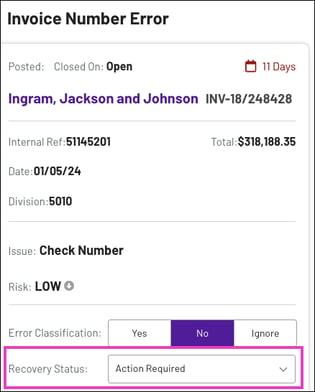
Note: You can add, remove, or reorder available recovery statuses in the Transactions Settings page. To learn more, see Transactions Settings (coming soon).
- (Optional) Scroll down to the comment field, enter a comment, and click the send button to add the comment.