
The Duplicate Invoices table helps you classify and resolve potential duplicates in your account. The following subsections describe how to:
Resolve a Duplicate Pair
To resolve a duplicate pair:
- Navigate to the Duplicate Invoices tab and locate the duplicate pair to resolve.
- Locate the Recovery Status column and select one of the following values:
-
- No action required: No further action is required
- Action required: Additional action is required to resolve the duplicates
- Recovered: Overpayment was recovered from the vendor post payment run
- Corrected: Duplicate invoice was corrected prior to the payment run
- Pending recovery: A refund for the overpayment is pending
- Not recovered: Overpayment has not been collected from the vendor
Note: You can add, remove, or reorder available recovery statuses in the Transactions Settings page. To learn more, see Transactions Settings (coming soon).
-
- Locate the Duplicate Pair Classification column and select one of the following values:
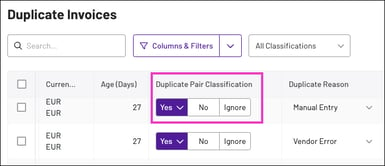
- Yes: Invoices in the pair are duplicates. You must select one of the following duplicate reasons:
- Manual Entry: Manual entry error caused the duplicate
- Incorrect Vendor Chosen: Incorrect vendor was specified
- OCR Error: Error occurred during OCR (optical character recognition) scanning
- Vendor Error: Vendor specified incorrect information
Note: You can add, remove, or reorder available duplicate reasons in the Transactions Settings page.
- No: Invoices in the pair aren't duplicates
- Ignore: Don't flag the invoices as duplicates and tell the AI to ignore them as it learns to improve duplicate identification

- Yes: Invoices in the pair are duplicates. You must select one of the following duplicate reasons:
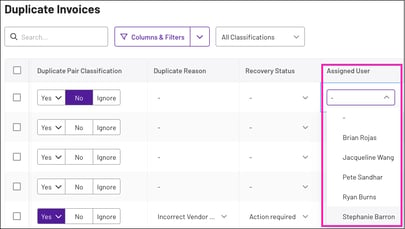
- Locate the Assigned User column, and select a user from your organisation to resolve the issue.
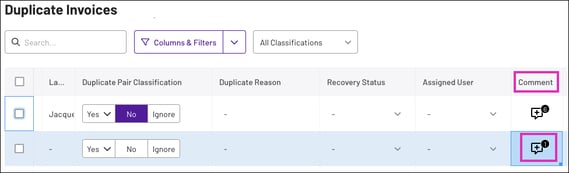
- (Optional) In the Comment column, click the comment icon to add a note about the duplicate invoice.
Resolve Multiple Duplicates with Bulk Actions
You can use the platform's Bulk Actions feature to resolve multiple duplicate pairs in a single operation:
- Navigate to the Duplicate Invoices tab and locate the duplicate pairs in the table to resolve.
- Click the checkboxes to the left of each duplicate you want to resolve, and click Bulk Actions in the upper-right corner.
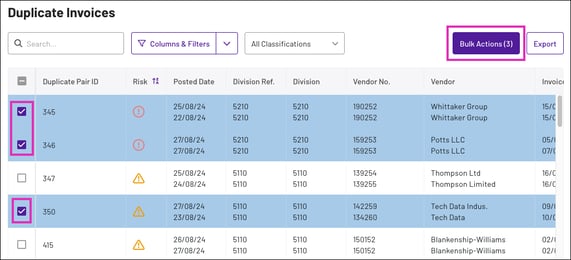
- In the Bulk Actions popup, configure the following fields:
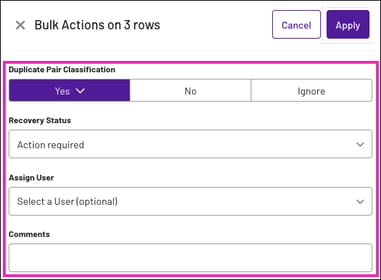
- Duplicate Pair Classification
- Yes: Invoices in the pair are duplicates. You must select one of the following duplicate reasons:
- Manual Entry: Manual entry error caused the duplicate
- Incorrect Vendor Chosen: Incorrect vendor was specified
- OCR Error: Error occurred during OCR (optical character recognition) scanning
- Vendor Error: Vendor specified incorrect information
Note: You can add, remove, or reorder available duplicate reasons in the Transactions Settings page.
- No: Invoices in the pair aren't duplicates
- Ignore: Don't flag the invoices as duplicates and tell the AI to ignore them as it learns to improve duplicate identification
- Yes: Invoices in the pair are duplicates. You must select one of the following duplicate reasons:
- Recovery Status:
- No action required: No further action is required
- Action required: Additional action is required to rectify the duplicates
- Recovered: Overpayment was recovered from the vendor post payment run
- Corrected: Duplicate invoice was corrected prior to the payment run
- Pending recovery: A refund for the overpayment is pending
- Not recovered: Overpayment has not been collected from the vendor
- Assign User: Assign a person to resolve the issue
- Comments: Add a note about the duplicate invoice
- Duplicate Pair Classification
- Click Apply at the top of the Bulk Actions window, to resolve the selected duplicates.

Note: The platform briefly displays a confirmation popup in the top-right corner.