
A faster way to see what’s working and what needs attention.
In Helpdesk, our new Xelix Automation dashboard gives you a clear view of what’s being resolved and categorised automatically, with global filters and language translation activity to help you spot trends and gaps fast.
In Statements, Auto share now automates reconciliation result sharing, completing your touchless journey which you can track on our new Touchless Journey chart. We’ve made improvements to our multi-currency automation and created new ‘Deleted by’ audit trails for statement handling.
Helpdesk
1. Xelix Automation dashboard
Introducing our new Xelix Automation dashboard, giving you a clear picture into your Helpdesk automations so you don’t need to request exports to understand your results.
Use it to:
- Track automation outcomes over time
- See where your team still does work manually
- Identify triggers to clean up, improve or create
Automation activity
At the top of the dashboard, you’ll see three widgets for the selected time period.
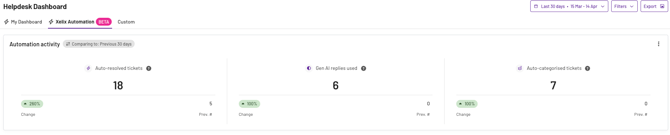
These are designed to give you a quick snapshot of automation performance.
1. Auto resolved ticketsAuto resolved tickets shows how many tickets were resolved automatically by any automation.
This includes system and user generated triggers.
You can click on this widget to see a filtered list of all tickets auto-resolved in the All Tickets tab.
2. Gen AI replies usedGen AI replies used tracks when you accept and send an AI generated response.
This helps you understand whether your team is using AI to reply at scale.
💡 Note: Gen AI reply usage is only available for invoice and reminder tickets
3. Auto categorised ticketsAuto categorised tickets shows how many tickets were categorised automatically, including any custom categories you’ve made.
Use this to see whether categorisation rules are working, and where you might need more specific categories.
Ticket categorisation updates
The ticket categorisation chart breaks down tickets by category, split by:
- Auto categorised tickets (purple)
- Manual categorised tickets (blue)
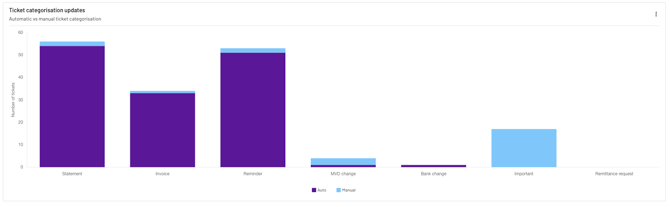
💡 Note: If a ticket is auto categorised and then someone changes the category manually, it moves from Auto to Manual
This is a useful way to spot categories where:
- Automation is doing the work
- Manual clean up is still happening (which is usually a sign your categories or rules need refining)
Gen AI usage over time
This chart shows how Gen AI reply usage changes across the days of the week.
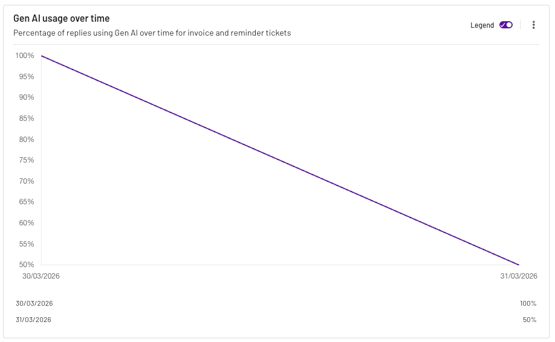
Use it to understand whether Gen AI is becoming part of your team’s day-to-day workflow.
This chart helps you:
- Spot adoption trends quickly (going up, stable, or dropping)
- Separate a change in behaviour from a change in ticket volume
- Identify when your Gen AI prompts need adjusting
Trigger run frequency
Trigger run frequency lists your triggers in order of how often they run.
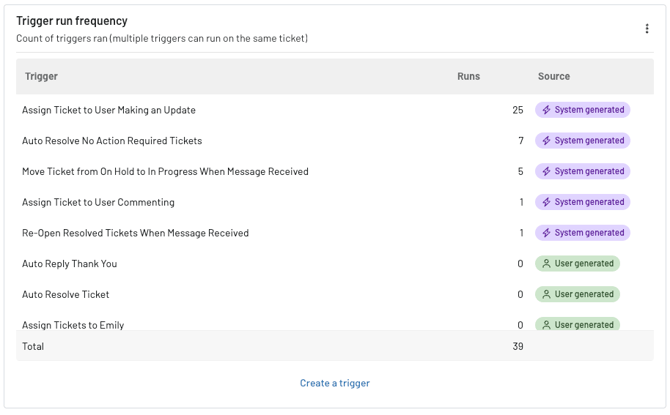
Use this section to:
- Identify high impact triggers that are doing the most work
- Spot unused triggers you can remove or improve
- Understand how many automated actions are happening across your Helpdesk
💡 Note: Tickets can have multiple triggers. This means the total trigger runs can be higher than the number of tickets.
Auto resolved tickets over time
This chart shows how many tickets were auto resolved across the selected time period.
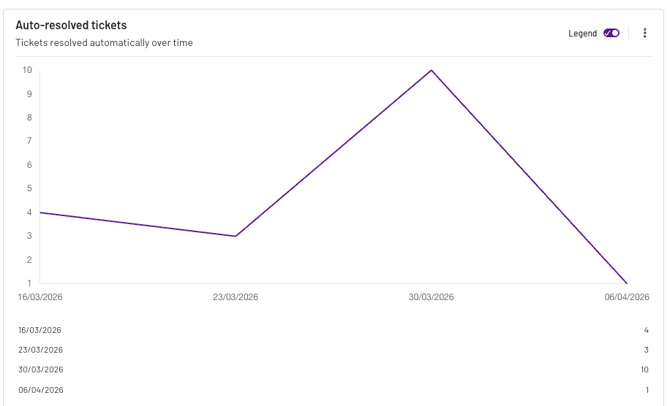
Use it to understand whether automation performance is improving.
If you see consistent dips, you may need to:
- Add new triggers
- Review whether ticket types or categories are changing
- Investigate areas where vendors send more complex queries
Language translation activity
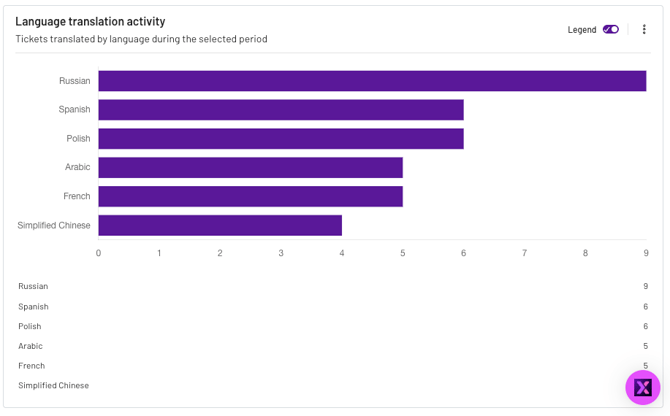
This chart shows how many tickets were translated into each language during the selected time period.
Use it to understand:
- Which languages your team is most frequently translating
- Where you might need more resources to cover language demands
- Whether your vendor communications are becoming more global over time
Using global filters

You can filter the Automation dashboard to focus on a specific slice of your data.
For example, you can filter by mailbox, ticket type, or date range
This is especially useful if you want to exclude tickets that skew your results
For example, some teams exclude outbound tickets to focus only on vendor queries, not tickets created by your team.
This helps you measure automation performance on vendor messages more accurately
The goal?
→ Make automation performance easy to understand at a glance
→ Highlight where tickets are being resolved or categorised automatically vs not
→ Help teams spot high-impact triggers and opportunities to reduce manual work
Statements
1. Auto share
Auto share lets you schedule reconciliation exports and send them to vendors automatically, so you can keep reconciliations moving without manually exporting and emailing results.
This is a series of configurations available in the Statement Settings page for admin users only.
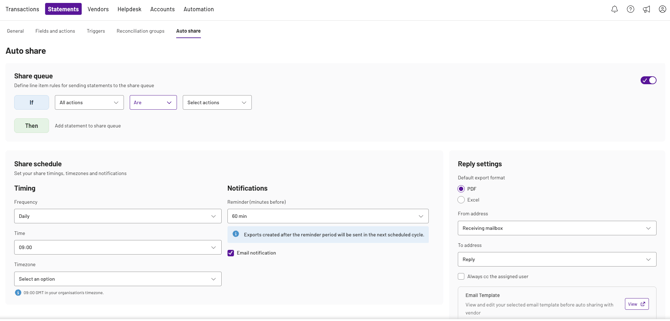
What’s new
-
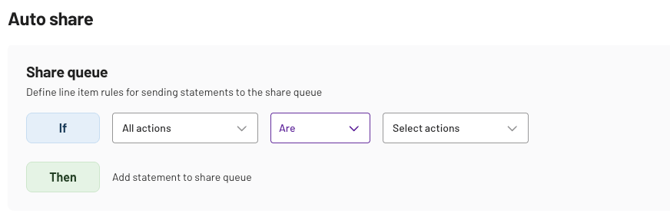
Share queue: automatically queue reconciliations for sending based on a rule you set (for example, queue anything that needs a vendor response)
-
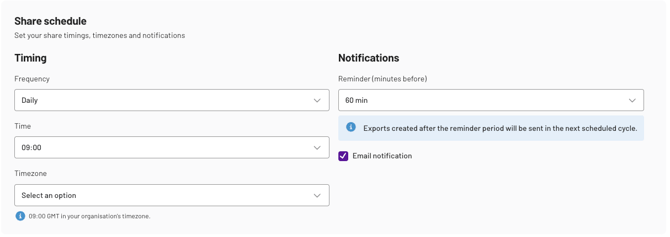
Share schedule: choose when exports are sent (daily, weekly, or monthly), plus the run time and timezone
-
Auto share queue: a queue view that shows what’s due to send, what’s coming up and what needs attention before it can go out
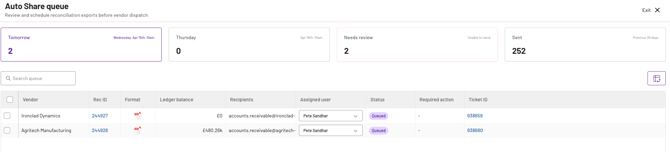
💡 Notes: Manual sharing is still available at any time, these will appear as “Shared” in the Sent queue.
If you change your Auto share rule while items already exist in the queue, Xelix will show a confirmation prompt that lists the items that will be removed.
💡 Note: If you remove an item from the queue, it will not be re-added automatically. You will need to share it manually with the vendor.
-
Reply settings: control the default file format (PDF/Excel) and how emails are sent
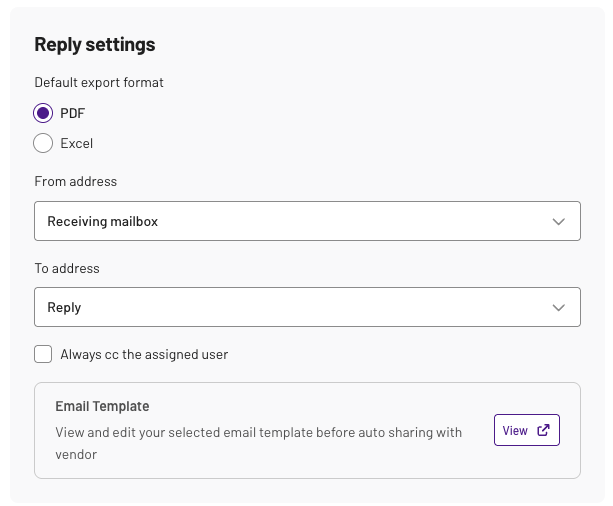
- From: receiving mailbox (recommended) or assigned user email address
- To: vendor master email addresses, Reply or Reply all
- Optional: always CC the assigned user
The goal?
→ Reduce manual exporting and emailing of reconciliation results
→ Create a consistent, reviewable workflow for sharing with vendors
→ Help teams move towards touchless reconciliation
2. Multi currency automation improvements
We’ve improved our multi-currency automation accuracy and speed when you’re dealing with currencies on a statement.
Instead of leaving the statement unclassified and waiting for manual input, we now pre-fill the key fields so you can move forward faster.
💡 Note: Your workflow doesn’t change - you’ll still be paused at the multi-currency step, but with the fields pre-filled so you can confirm and continue.
The goal?
→ Reduce time spent completing multi-currency recs
→ Reduce user corrections and stuck workflows
→ Help multinational customers reconcile faster
3. Touchless journey chart
The Touchless journey chart on the Statement dashboard helps you understand how touchless your reconciliation workflow really is, without exporting data.
💡 Note: If you’ve not set up these configurations yet, this will still show up on your dashboard along with a link to the correct settings. We encourage everyone to start their touchless journey!

It visualises the journey from:
- Auto reconciled recs
- Auto shared recs
💡 Note: Click onto these widgets to go to the Reconcile page to see the detailed breakdown
You can also filter the recs by date, system, division, vendor group, currency by clicking on the funnel icon at top right.
The goal?
→ Gain automation value at a glance
→ Identify and fill automation gaps
4. ‘Deleted by’ audit trail
We can now provide a clear audit trail for statement/reconciliation deletion, so you can quickly see who deleted what and when.
Contact your dedicated Account Manager to get an accurate statement handling history report.
💡 Note: This only captures deletion events (not other changes made to a reconciliation).
The goal?
→ Increase confidence in the statement audit trail
→ Reduce manual investigation and reporting requests
→ Support stronger governance and controls around statement handling