
Contents:
- What is email threading?
- How emails arrive in Helpdesk
- How we decide which thread an email belongs to
- Understanding ticket states
- Common scenarios
- Best practices
1. What is email threading?
Email threading is how we group related emails into a single conversation. Threads may have multiple tickets attached to it, keeping all your back-and-forth with vendors organised in one place.
Think of it like the conversation view in Outlook - your message and all replies stay together as one continuous discussion.
2. How emails arrive in Helpdesk
We connect securely to your mailbox and bring your emails into Helpdesk through three steps:
- We import your existing emails (a historic import)
- We sync regularly to pick up new messages, edits and deletions
- We maintain an up-to-date copy that matches what you see in Outlook
3. How we decide which thread an email belongs to
When a new email arrives, we look for its "parent" message using two methods:
Method 1: Outlook conversation ID (primary method)
We use Outlook conversation ID to thread emails as the default option. This replicates standard Outlook behaviour and avoids situations where users treat replies as email templates (which can cause wrong threading).
Emails with the same conversation ID are grouped together, matching what you see in Outlook.
Method 2: Reply check (fallback)
If the Outlook conversation ID isn't available (e.g. when someone forwards an email or starts a fresh one), we use the "in-reply-to" header to place the email on a thread.
The rules we apply:
Once we've checked both methods:
- No parent found? We create a new thread and a new ticket
- Parent found? The email joins the same thread - and therefore the same ticket - as its parent
4. Understanding ticket states
Tickets in Helpdesk move through different states as you work on them. Understanding how these states work helps you keep your queue organised.
Resolved vs Completed
When you finish working on a ticket, you can move it to Resolved. This state is mutable - meaning it can change if new activity comes in.
In your settings, you can specify how many days a Resolved ticket should wait before moving to Completed. If there are no further updates or emails during that time, the ticket automatically moves to Completed. This state is immutable - it won't change.
What happens when new emails arrive
- New email on a Resolved ticket: We'll move it back to In Progress so you can continue working on it
- New email on a Completed ticket: We'll create a new ticket on the same thread that contains the new email. You'll have:
- A Completed ticket with all the emails you received before it was completed
- A New/In Progress ticket with all the emails (including the new one)
This keeps your completed work separate whilst making sure new messages don't get missed.
5. Common scenarios
Vendor/ User hits "Reply"
Their message is added to the existing thread and ticket.
Vendor starts a brand-new email (not a reply)
If we can't match it using the Outlook conversation ID (our primary method), we fall back to the reply header. If neither method finds a match, it becomes a new ticket.
You forward an email or send a brand-new outbound message
It's a fresh conversation, so Helpdesk creates a new ticket.
6. Best practices
- Encourage vendors and your team to reply to messages (not start a new email) when continuing a discussion
💡 Note: But, if this does happen it’s okay! Helpdesk now has a new ‘related tickets’ feature which ensures that when a vendor follows up on a resolved issue, forwards a message or copies multiple mailboxes, Helpdesk relates the tickets to each other.
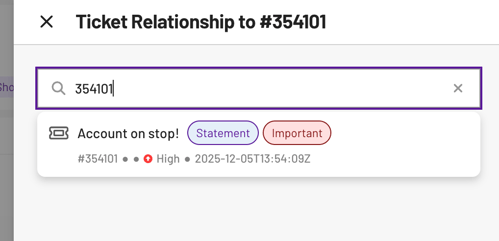
- If something lands in a new ticket but clearly belongs to an existing one, handle it according to your internal process so future replies stay together
💡 Note: Threading happens automatically in the background. You don't need to manually group emails - we handle this for you based on the logic above.