
This guide explains how Xelix continuously monitors your system data to keep your reconciliations accurate and updated. We highlight the different types of changes (notified, silent) that occur, and which of these changes need your approval - and how to approve them. We also outline how Xelix performs updates to your data (automatic refresh) 🔎
Xelix continuously monitors the data in your systems to see if any updates to invoices could impact historic reconciliations you have performed. For example, if missing invoice copies are later sent by the vendor and processed through your workflow into the ERP system, Xelix will automatically detect this and update the reconciliation, removing those invoices from your pending actions and marking them as complete.
The updates we make are guided by our background calculations and metrics. We consider reconciliations from up to one year ago to be relevant, and we will update those if the new data from your daily files matches this timeframe.
How we update:
💡Note: There is a time lag between when we receive a daily file and us reflecting updated information in the rec.
To keep your records accurate and up to date, Xelix reviews changes in three ways:
1.1. Notified Changes
We notify you to updates that affect the reconciliation summary. For example:
- Invoice Number
- Invoice Date
- Amount
- Vendor
- Division
- Currency
- Posted Date
- New invoices
- Reversed/obsoleted invoices
- Closed date
When these changes occur, Xelix will notify you and request your approval before updating the reconciliation.
1.2. Silent Changes
Some updates are applied automatically without requiring your input. These are changes that do not affect the reconciliation summary, such as:
- System
- Region
- Due Date
- Vendor Group
- Rec Group
- Internal Reference
- Open Amount
- Description
- Custom Fields
- Vendor Custom Fields
- When the Posted Date changes relative to the ledger date:
- From before/on → to another date before/on
- From after → to another date after
- From unposted → to a date after (such as subsequently posted invoices [link to glossary terms])
- When the Closed Date changes relative to the ledger date:
- From before/on → to another date before/on
- From after → to another date after
- From unposted → to a date after
Silent changes are designed to keep your data clean without disrupting your workflow. However silent changes are conditional and will only be applied when:
- The invoice in the reconciliation does not already have pending changes associated with it.
- We have detected no other changes that would be displayed to you.
💡 If both silent and notified changes exist for a line item, the silent changes will only take effect once the notified change has been approved.
1.3. Automatic refresh
There’s another type of update Xelix performs called an automatic "refresh." This is different from silent changes and only occurs when there are no pending changes waiting for your approval.
During a refresh, Xelix looks at all reconciliation lines with differences (specifically where the invoice has differences). It searches for better matches within Xelix. If a better match is found, we update the reconciliation line to reflect the correct invoice.
The refresh also checks statement lines that don’t yet have a ledger match. It looks for old invoices that already have identified differences but may be a ledger match. These invoices are not displayed in the "Notified Changes" section because they still have differences, but the system updates the reconciliation accordingly.
💡 Like silent changes, refresh changes will not take place until you have approved any notified changes to take place.
1.4. How to approve changes:

If there are changes to review for a statement reconciliation, a blue banner will appear at the top of your reconciliation results page, outlining the number of ‘pending’ changes there are to this reconciliation. You'll have the option to click “Review Changes” or “Review Later”.
When you click on the “Review Changes” button, you’ll be taken to a new table that is colour coded. These changes refer to how the ledger data changes and/or new invoices added to the rec will impact the reconciliation line status.
- Red: remove (x)
The reconciliation line status will go from Matched to Differences. This can happen when a matched invoice is deleted, or its ledger data changes so that the status of the reconciliation no longer is marked as ‘Matched’
- Green: add (+)
The reconciliation line status will go from ‘Differences’ to ‘Matched’. This can happen when a matched invoice’s ledger data changes so that the reconciliation line status will no longer have differences or a new invoice is added to the reconciliation.
- Orange: change (!)
The reconciliation line status remains the same. Despite the ledger data change, the overall status of the reconciliation line does not change e.g. invoice number is changing.
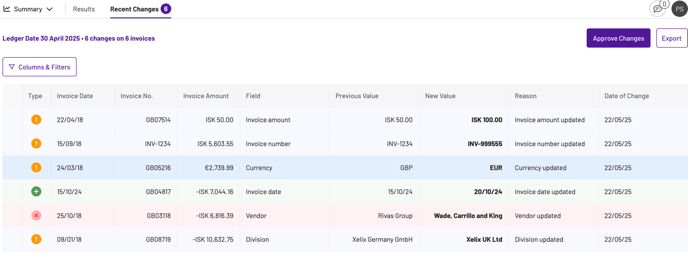
The columns in the table are as follows:
- Type: type of change (added, deleted, changed)
- Invoice date
- Invoice no
- Invoice amount
- Field: the field that is being changed within the invoice e.g. currency or amount
- Previous value: the original data
- New value: the changed data
- Reason: the field being updated
- Date of change: the date Xelix received the new information
After reviewing the changes set to take place, you can export the pending changes table as an excel file and share it how you wish. You can also click the ‘Approve Changes’ button so that the reconciliation is updated.
Watch this space as we will soon be releasing a guide outlining our behind-the-scenes logic to conduct statement and invoice matching in our Statements module. It will break down how these three types of changes occur.