
Contents:
1. What are Templates?
Templates are pre-written messages you can use to standardise responses to vendors. They help you automate time-consuming manual tasks and ensure consistent communication across your team.
You can create templates in Helpdesk settings and build multiple templates to suit different business scenarios.
💡 Note: Only admins can access and create Templates.
System-generated templates
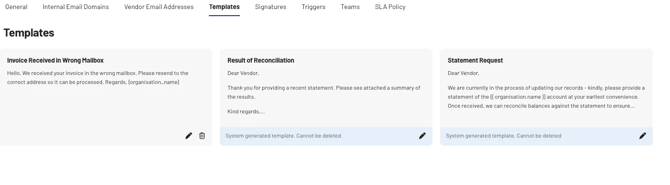
We provide two system-generated templates that can't be deleted, but you can edit them to suit your needs:
1. Statement request: Use this when requesting a statement from a vendor before performing a statement reconciliation
💡 Note: If you have the Statements module, this is the same default message we provide when sharing or exporting your reconciliation results to vendors.
2. Result of reconciliation: Use this when sending reconciliation results to your vendor💡 Note: If you have the Statements module, this is the same message you see in the Vendor Insights tab when composing an email for a particular reconciliation line.
2. How to access Templates
When composing a message, you can access your templates in two ways:
-
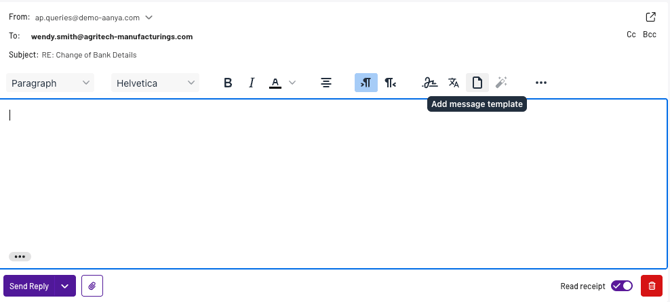
Click the template icon at the top right of the message composer
-
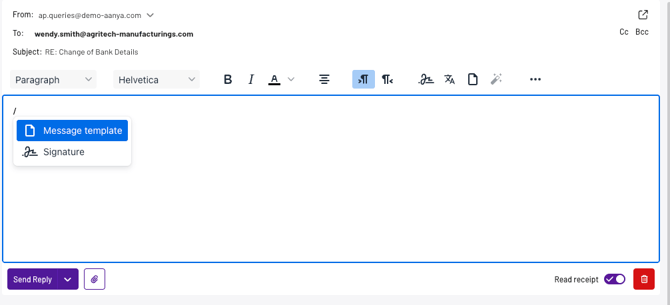
Press the forward slash (/) button on your keyboard and select the message template option
3. How to create a Template
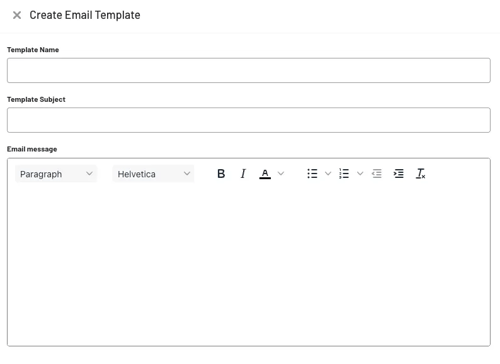
When creating a template, you'll need to configure three main elements:
Template name
This is the label you'll see when selecting a template from your list.
Template subject
This works like an email subject line and appears at the top of your message.
Template message
This is the body content of your message. The message composer offers the same styling and formatting options you'd find in Outlook, including:
- Text size and font options
- Colour formatting
- Text alignment
- Bullet and numbered lists
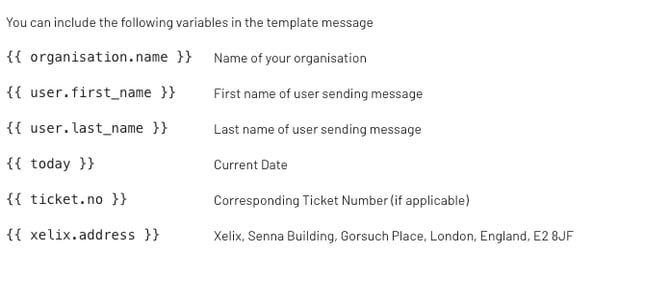
Dynamic variables
Templates include a list of variables you can add to your message. These are dynamic code lines that automatically adapt to reflect the relevant information for each recipient.
Variables ensure your messages are personalised without manual editing each time.
💡 Note: You can upload attachments to support your email template.
4. How Signatures work
You can manage signatures centrally and assign different defaults to each mailbox.
This means that users handling multiple departments or client inboxes can automatically send the right contact details, branding and legal disclaimers in their signatures without manual input.
💡 Note: Each mailbox can only have one default signature.
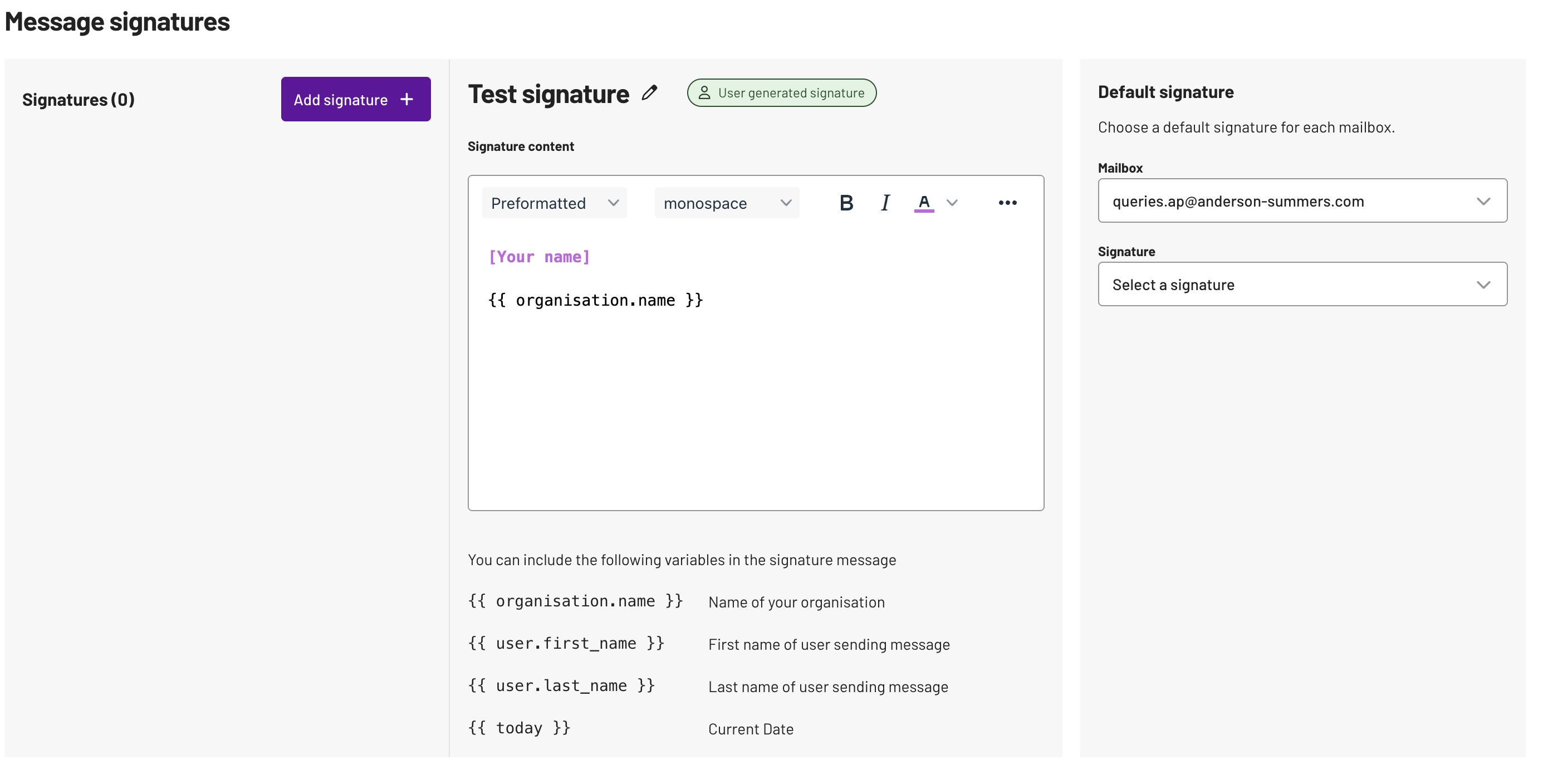
How it works
Step 1: Add signature - create a signature for a specific mailbox.
Step 2: Edit signature - update the signature's content and formatting as needed.
Step 3: Set default - associate the mailbox with a signature to mark it as the default.
💡 Note: Only admins can access and create Signatures.
We provide the following variables you can choose from:
- Sending to [org.name]
- Sent through [your org name]
- [Your first name]
- [Your last name]
- [your org address]
Like Templates, you can also create new signatures that suit your organisation's needs and assign them to specific mailboxes.