
Contents
- What are Triggers?
- The three key parts of a trigger
- Possible trigger events
3.1. Event: Ticket is created
3.2. Event: Message is received
3.3. Event: Ticket is updated - Default system triggers
1. What are Triggers?
Triggers are automated actions that take place when specific conditions are met. They help streamline workflows by automatically updating tickets, sending emails or assigning tasks based on predefined rules.
With Triggers, you can create customised workflows that suit your business needs. They conduct actions you might manually do - but don't need to - saving you time and ensuring consistency.
For example, you can update a ticket priority to high if it's from a particular vendor. This means when you filter for high priority tickets, you already have the necessary tickets to work on rather than first sourcing tickets from high priority vendors before working on them.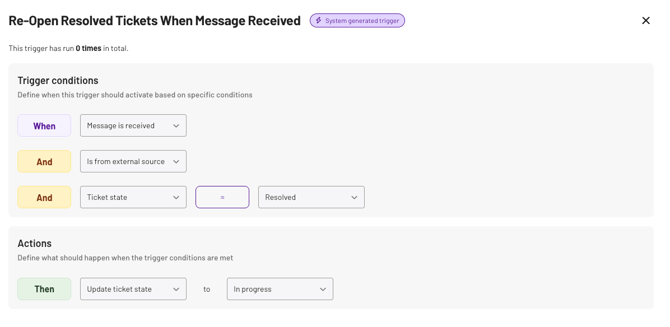
2. The three key parts of a trigger
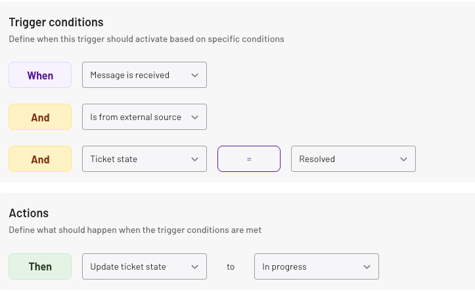
Every trigger consists of three essential components working together to automate your workflow.
Each of these must be filled in to fire the trigger:
- Event – The action that starts the trigger (e.g., "A new ticket is created" or "A message is received").
- Condition – The criteria that must be met for the trigger to activate (e.g., "Category = Invoice" or "Sender includes @xero.com").
💡 Note: Triggers use "AND" logic only, not "OR" functionality.
- Action – The automated action when the conditions are met (e.g., "Reply with template" or "Update ticket priority to High").
It's important to understand that the available actions for a trigger depend on the event type selected. Different events offer different sets of conditions and actions.
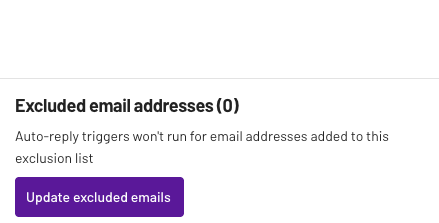
💡 Note: For Auto-reply triggers, you have the option to exclude email addresses you don’t want the replies sent to.
3. Possible trigger events
Triggers can be initiated by three main event types, each with its own set of conditions and actions:
💡 Note: When creating a trigger with an invoice condition, Xelix doesn't consider the status of the invoice (found/not found, posted/not posted). If an invoice is attached, the trigger will execute regardless of its status.
3.1 Event: Ticket is created
Available conditions:
| Conditions | Details |
|---|---|
| Ticket title | Enter specific ticket title |
| Email sender | Enter name/email address |
| Category | Select from 7 default categories + custom categories |
| 💡 Note: We have added a new ‘uncategorised’ option for uncategorised tickets you want to automate actions for. | |
| Language | Select specific language |
| Vendor group | Select vendor group |
| Mailbox | Select mailbox |
| Ticket type | Select ticket type |
| Source | Internal vs external |
Available actions:
| Action | Details |
|---|---|
| Reply to the message | Select template |
| Forward the message | Enter email address |
| Update ticket state | New, in progress, resolved, complete |
| Update ticket priority | Low, medium, high |
| Update ticket category | Select from default or custom categories |
| Update assigned user | Select user |
| Update custom field | Select custom field + field value |
| Update vendors | Select vendors |
| Update ticket team | Select ticket team |
💡 Note: Triggers only run after all AI analysis steps are completed. This means ticket properties like language, vendor and category are conditions you can limit with a trigger - particularly with the 'when = ticket is created' event.
3.2 Event: Message is received
Available conditions:
| Condition | Details |
|---|---|
| Message subject | Enter message subject |
| Email sender | Enter name/email address |
| Message attachment(s) | Select attachment category: attachment, statement, reminder, invoice, other, W9, purchase order |
| Mailbox | Select mailbox |
Available actions:
| Action | Details |
|---|---|
| Reply to the message | Select template |
| Forward the message | Enter email address |
3.3 Event: Ticket is updated
Available conditions:
| Condition | Details |
|---|---|
| Ticket state | in progress, resolved |
Available actions:
| Action | Details |
|---|---|
| Reply to message | Select template |
4. Default system triggers
Xelix includes several pre-configured system triggers that handle common workflows automatically. These can be toggled on or off as needed: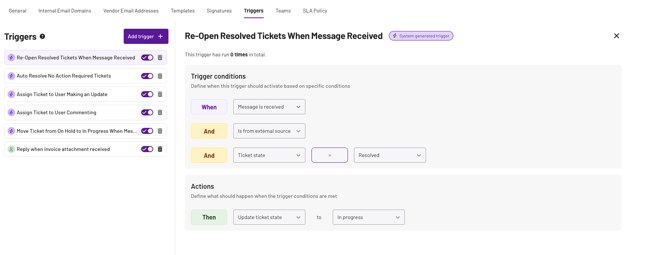
- Re-open resolved tickets: When a vendor messages about a resolved ticket, the system automatically moves it back to 'in progress'.
- Auto-resolve NAR tickets: Tickets marked as No Action Required (NAR) are automatically resolved.
- Auto-assign to updating user: Unassigned tickets are assigned to the first user who updates them.
- Auto-assign to commenting user: Unassigned tickets are assigned to the first user who comments on them.
Want to learn more about automating your Helpdesk workflows? Check out our guide on How Gen AI replies works to see how automation integrates with our AI analysis.