
1. Helpdesk workflow
In Helpdesk, we read and generate responses to all your tickets. This process is broken down into stages. From reading, processing, categorising, extracting and matching your ticket and ERP data, to drafting a response, we use various types of AI models to produce the most accurate response to a ticket.

In this article, we will taking a deeper dive into stages 7 and 8: email and attachment scanning. Specifically, how we match the invoice data we pick up from your emails/ attachments and match it to existing data in your ERP.
2. What is invoice matching?
Invoice matching is an automated matching system that matches invoices picked up from your emails and attachments to existing records in your ERP ledger database.
It was developed to match email invoices to the corresponding ones in your ERP system despite minor errors typos, formatting differences, rounding discrepancies). By adding flexibility and tolerance to the matching criteria, we avoid any creation of duplicate invoices in the system, causing problems later.
Once we match your data, our system generates confidence scores (0-1) to indicate match accuracy.
Helpdesk uses two matching models to match your invoice and ERP data: rule-based matching (RB) and machine learning matching (ML). ML matching is an upgraded version to rule-based matching, and is the default matching model we apply to your tickets.
💡Note: We still offer the option to limit your invoice matching to rule-based matching model if you’d like to test it out. Get in touch with your dedicated Customer Success Manager to learn more.
3. Two matching approaches
Both approaches start with the same pool of potential matches - looking at invoice number, amount, date, and supplier. They just evaluate them differently.
3.1. Rule-based matching:
This approach works like a checklist. It follows strict rules to match invoices, but it's flexible enough to handle real-world errors.
What it tolerates:
- Small differences in invoice amounts
- Different date formats (like US vs EU formatting)
- Dates that are off by 1 day
- Invoice numbers with minor typos
How it weighs information:
- Invoice number, amount and supplier details are given equal importance
- Dates are considered less critical
This method ensures each invoice from your email matches to only one record in your ERP system.
3.2. Machine learning matching:
This approach goes one step further from RB matching. It relies more on pattern recognition rather than fixed rules. Think of it as learning from experience rather than following a manual.
How it works:
- Analyses around 60 different characteristics simultaneously to predict if two invoices match
- Looks at things like how similar invoice numbers are, how different the dates are, whether amounts vary and if suppliers match
- Can spot matches that might slip through the cracks of rigid rules
4. Invoice rematching
Helpdesk also conducts invoice rematching to existing invoice matches. This keeps invoice matches updated for a limited time to ensure you see current invoice information for your responses.
This is reflected in the "Accurate as of" timestamp shows when the most recent successful rematch completed.
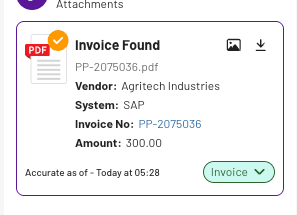
💡 Note: If no changes are detected, no new timestamp is recorded. This means a e.g. 2-day-old "Accurate as of" timestamp may still represent current information.
When does rematching happen?
- New daily file upload: When you manually upload a new invoice file
- Ticket supplier changes: When you add or remove suppliers from a ticket, all emails in that ticket thread are rematched
- Ticket category changes: When ticket categories are updated to Invoice or Reminder, the full workflow restarts (extraction, matching, and response generation)
Rematching criteria
14-day rematch window:
- Only emails created within 14 days are rematched
- After 14 days from email receipt, invoice matches are frozen and no longer updated
- AI response generation also has a 14-day threshold