
Contents
- What are Gen AI responses
- How is a Gen AI response triggered?
- The Gen AI workflow
3.1. A closer look into step 9: Response Generation
3.2. Stage 1: Gathering information
3.3. Stage 2: Drafting, formatting and checking the response - Confidence ratings
1. What are Gen AI responses?
Gen AI responses are AI-generated replies that Helpdesk drafts for your Invoice and Reminder categorised tickets. These responses are produced through the use of LLM models and a comprehensive analysis of messages and attachments of all emails in a threat, pulling all relevant invoice data to create accurate replies.
💡 Note: Generated responses are text only, we never automatically attach and send documents.
The process begins when you receive a new vendor email which we've read and categorised as an Invoice or Reminder email. This categorisation then triggers our Gen AI workflow. Let's explore each step of this process.
2. How is a Gen AI response triggered?
When you receive a vendor email for Invoices and/or Reminders, our system can generate a response for you in two ways:
-
Automatically: We'll create a response during email processing if certain conditions are met (like the email being recent and containing invoice information)
-
Manually: When you click a button to generate a response
When composing a message in Helpdesk, you'll see several fields that define the message:
- state (new, in progress, resolved, complete)
- priority (low, medium, high)
- category (default and custom options)
- vendor
- source (internal versus external domain)
- team
- assignee
Any time you manually update the ticket category and/or vendor, the ticket is queued for re-analysis when we receive new daily files from your organisation.
💡 Note: This is why you might see the message "accurate as of [date] " . This information is continuously updated as new data arrives.
3. The Gen AI workflow:
 When an email arrives, our system follows these sequential steps:
1. Ticket creation: A ticket is created from the email and assigned a unique ticket number. This number becomes an 'item' that undergoes further analysis.
2. Language detection: We analyse the language of the message and translate it if necessary.
- Inbound translation (to English): When vendor emails arrive in languages other than English, the system detects the language and translates the content into English for processing.
- Outbound translation (from English): After generating responses in English, the system can translate these responses back to the original language of the incoming message before sending them to vendors.
3. Category assignment: Each ticket is classified into one of our seven default categories (statement, invoice, reminder, MVD change, Bank change, important, remittance request, division) or any custom categories you've created.
4. Action determination: We assess whether action is required, classifying tickets as either "focused" or "no action required". When a message is categorised into one of our default categories, it's typically labelled as a 'focused' ticket that you can filter through various Helpdesk views (Inbox, Kanban, All tickets).
5. Email source identification: We determine whether the email is internal or external based on the sending domain.
📌 Tip: You should add internal and vendor email domains in your Helpdesk settings to help differentiate between internal and vendor tickets. Emails from domains listed as internal will automatically be excluded from vendor mapping.
6. Vendor identification: We identify which vendor sent the email by analysing the sender domain.
7. Attachment processing: We analyse any email attachments, categorising them appropriately. We extract relevant information such as invoice numbers, amounts and vendor details, then map this data to your available ledger data.
8. Email content extraction: We scan the email content to extract relevant information (like invoice numbers) and map it to your available ledger data.
9. Response generation: Finally, we produce an AI-generated response based on all the collected and analysed information. These responses can be edited to suit your organisation needs.
3.1. A closer look into step 9: Response generation
Behind the scenes, our system follows a two-stage process to create these responses:
3.2. Stage 1: Gathering information
First, we collect everything needed to write a helpful response:
- The email thread: We include the conversation history so the AI understands the context (we review up to 20,000 words to understand the full context)
- Invoice data: We pull in details about any invoices mentioned in the email, including payment status, amounts and dates
- Instructions for the AI: We use a custom prompt instruction to draft a response. The default response addresses the external recipient by their first name and avoids making promises about timelines. Prompt instructions can be customised specific to your organisation.
💡 Note: The AI only uses invoice information that meets our confidence thresholds - we won't include and analyse data we're not sure about. Keep reading to learn more.
3.3. Stage 2: Drafting, formatting and checking the response
We use an advanced AI model to analyse all the information we've gathered and write a response.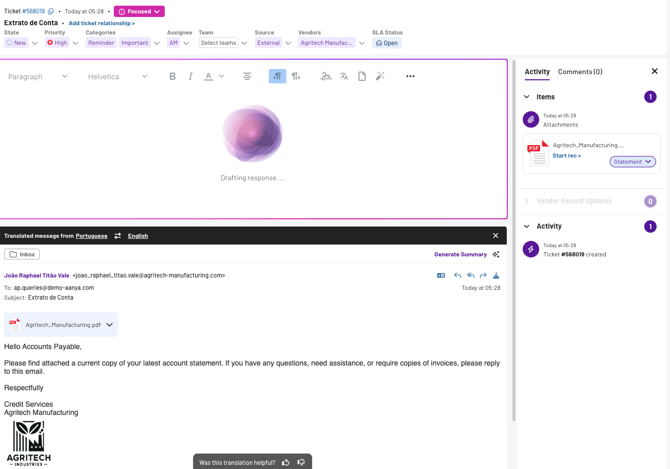
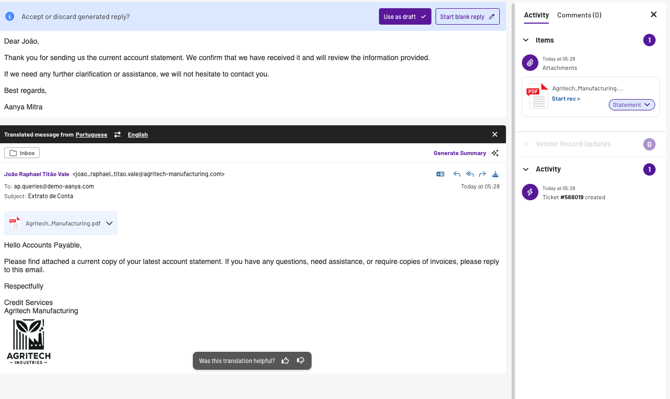
Then, we polish the response to make it easy to read and evaluate its quality:
- We bold invoice numbers so they're easy to spot
- We format the text properly with line breaks and bullet points
- We calculate a confidence score by evaluating three factors:
- how complex the email thread is
- how well we extracted invoice information
- how accurately we matched invoices to your system
- We add a signature placeholder
[Your Name]where you can add your details before sending. If you already have a default signature, we can use that too.
3. Confidence ratings
For Gen AI to work effectively, all nine processing steps must function seamlessly. Since each step builds on the previous one, errors early in the process will impact later steps.
So, to after drafting a Gen AI response, we display a confidence rating that shows how accurate we believe our output is.
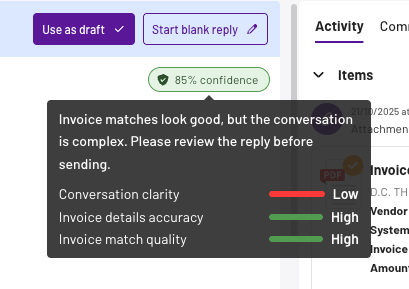
This appears as both a label (HIGH / MEDIUM / LOW) and a percentage out of 100, calculated by combining three individual task-level confidence ratings:
- Conversation clarity - how complicated we believe the thread is
- Invoice details accuracy - how correct we think the matched invoice data is
- Invoice match quality - how confident we are that we've matched the correct invoice
By clicking through the confidence rating, you can make faster decisions about sending generated replies, ultimately reducing cycle times for ticket resolution.
💡 Note: A low confidence rating means your review and edits are likely needed.
By clicking through the confidence rating, you can make faster decisions about sending generated replies, ultimately reducing cycle times for ticket resolution.