
Contents:
- What are Custom Categories
- Smart-categorisation conditions
- What triggers Smart-categorisation
- Recognising 'similar' emails
- Deciding which categories to apply
- How your workflow trains Helpdesk
- Best practices
1. What are Custom Categories?
Custom categories let you define labels that fit your process, beyond the defaults.
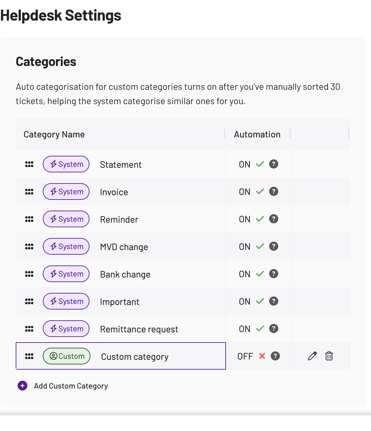
As you and your team apply these labels to tickets, Helpdesk learns the patterns and starts suggesting the same categories for similar incoming emails. This is called ‘Smart-categorisation’
We train our AI by reusing your past, labelled emails as examples and compare new emails against them to decide which categories fit best
💡 Note: Because the system learns from your own labels, it adapts quickly when you introduce new categories or change how you use them.
2. Smart‑categorisation conditions

Smart‑categorisation starts once a category has enough real examples (30) to be reliable.
- Threshold: at least 30 tickets labelled with that custom category need to have passed through the AI
- Status:
-
Not yet eligible: the category is created but has fewer than 30 uses
-
Eligible: 30 or more labelled examples
-
Disabled: you’ve turned off auto‑use for that category

-
Once a category crosses the threshold, we mark it eligible for Smart‑categorisation, and it becomes a candidate for suggestions on similar emails.
💡 Note: You can still apply categories manually at any time. Manual labels continue to train and improve future suggestions.
3. What triggers Smart-categorisation?
When a new email arrives, we’ll attempt Smart-categorisation if these conditions are met:
- Smart categorisation is enabled
- It’s the first email in a thread
- At least one custom category is eligible (30+ examples)
💡 Note: Smart-categorisation runs on the first email in a thread. This ensures it will automatically apply to any replies within the thread.
If any of these are missing, we skip smart‑categorisation for that email and carry on with normal processing.
4. Recognising similar emails
Helpdesk converts and stores each email received into a kind of "fingerprint". This captures what it means, not just the exact words.
So even if two emails are worded differently e.g. "Send me the invoice" vs. "Can you provide the bill?", Helpdesk sees them as similar because they're asking for the same thing.
Here's what happens:
- When a new email arrives, the system creates its fingerprint
- It then looks through past emails to find ones with similar fingerprints
- Those past emails already have labels your team added
- The system suggests the same labels for the new email
💡 Note: We can apply more than one custom category if your historical examples support it. You’re always in control and can adjust on the ticket.
Helpdesk basically conducts pattern-matching based on meaning rather than exact words, which is why it works even when vendors phrase things differently.
5. Deciding which categories to apply
Look for similar emailsHelpdesk finds emails you've handled before that are similar to a new email received (emails share the similar fingerprints).
Check what labels you usedWe look at how you labeled those similar emails in the past.
💡 Note: We’ll make sure to filters for labels that have been used enough times (at least 30) to be reliable.
Choose the best matchWe then pick which labels make the most sense for the new email based on the patterns it found.
Add the labelsWe’ll apply the suggested labels and mark them as automatic, so you know they’re smart categorised.
💡 Note: We’ll never create new label names on its own - we’ll only suggests labels you've already used before.
6. How your workflow trains Helpdesk
Every manual action helps:
-
Label consistently
Each time you label an email to a custom category, you improve future suggestions.
-
Reach eligibility quickly
Once a category has 30+ examples, it can be suggested automatically. Further examples make it even more precise.
-
Correct the system
If a Smart-categorised label isn’t right, remove it and add the correct one. Your correction becomes part of the training signal and improves future matches.
7. Best practices
- Keep categories meaningful and specific (name your categories in a way that it is understandable by anyone)
- Apply the same category whenever the situation matches
- Disable/delete unused categories to avoid confusion
- Encourage your team to correct mislabels so the system learns fast
By complying with these best practices, smart categorisation ultimately improves Trigger accuracy, which in turn, improves SLAs, and dashboard insights.