
This month’s updates are all about making it easier to prioritise tickets, trust what you’re seeing and keep workflows moving.
In Helpdesk, My Dashboard gives each user a personal view of workload and performance, and invoice reversals are now handled consistently so invoice statuses match across the Activity panel and GenAI responses.
In Statements, custom exports are more flexible, mapping is more reliable, suggested ledger dates stay up to date and division detection is more accurate.
Helpdesk
1. My Dashboard
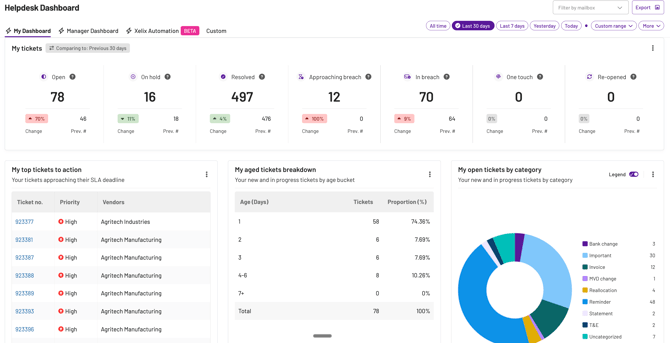
My Dashboard is a new personal landing page designed to help each Helpdesk user prioritise their day and track their own performance at a glance.
It focuses on tickets assigned to you (not a team-wide view), so you can spot urgent work quickly and keep on top of your SLAs.
If your team works across multiple mailboxes, you can use Filter by mailbox to focus the dashboard on a specific mailbox. You can also use Export to download the dashboard data for reporting.
Ticket widgets
At the top of the dashboard are instant ticket widgets that you can click to open a filtered view of the selected ticket category.
You can hover your mouse over the tool tips next to the titles to understand what tickets these widgets are defining.
💡 Note: Use the date range controls at the top of the dashboard (for example: Today, Yesterday, Last 7 days, Last 30 days, or a custom range) to decide which time period your metrics should reflect
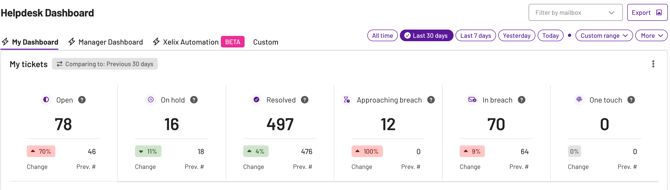
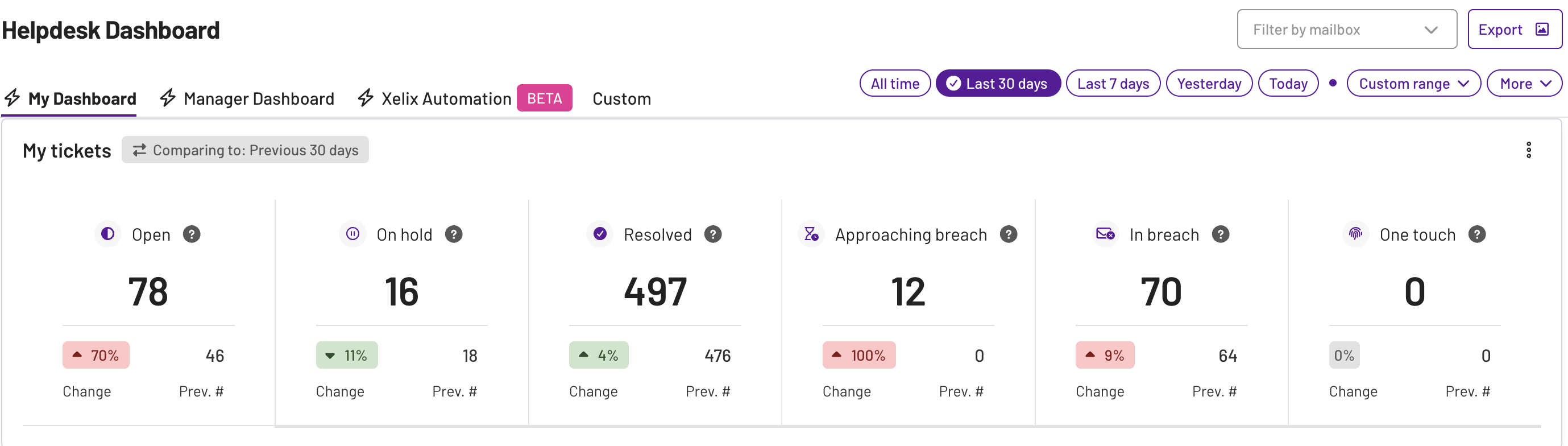
- Open tickets
- Includes tickets in New and In progress tickets that are awaiting action
- On hold ticket count
- Resolved ticket count
- Approaching breach
- Tickets within 24 hours of breaching SLA
- In breach
- Tickets that have breached SLA
💡 Note: Once a ticket breaches SLA, it will stay marked as in breach, even after it’s resolved
- One touch tickets refer to tickets that were resolved with a single response and no further follow-up was needed
- Re-opened ticket count
💡 Note: Each widget also shows how this period compares to the previous period
Charts
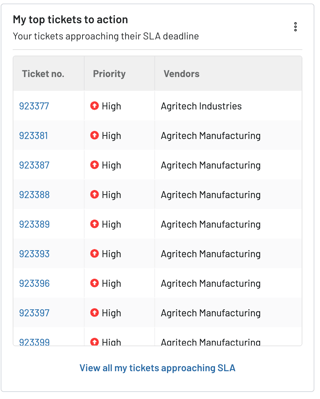
My top tickets to action
Shows your tickets that are approaching their SLA deadline
- Includes tickets assigned to you
- Each row shows the ticket number, priority, and vendor
- Prioritised by SLA deadline
💡 Note: If SLA isn’t configured, this list will prioritise by priority (High / Medium / Low)
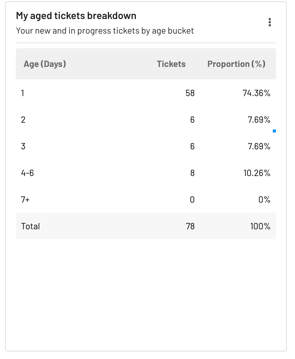
My aged tickets breakdown
Shows how long your open workload has been waiting for action
- Includes tickets in New and In progress
- Groups tickets into age buckets (age in days)
- Each bucket shows
- Tickets, how many tickets fall into that age bucket
- Proportion (%), the percentage of your open workload in that age bucket
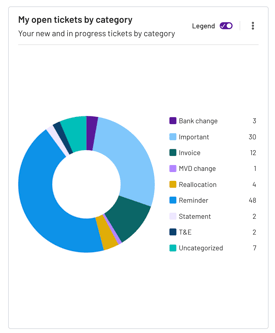
My open tickets by category
Shows what types of work are making up your open ticket workload
- Includes tickets in New and In progress
- Breaks your open tickets down by category
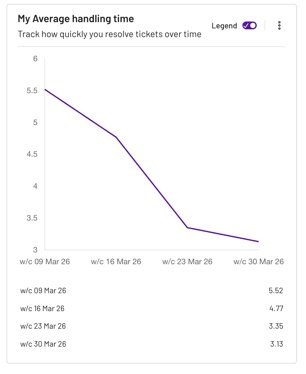
My average handling time
Tracks how quickly you resolve tickets over time
- Handling time is measured from ticket created → ticket resolved
- Pauses while a ticket is on hold
- If a ticket is reopened, handling time continues adding up
My performance in context
Shows how many tickets you’ve resolved compared to your team over time
- Your performance is shown alongside a team comparison line
💡 Note: This is a comparison view and does not change which tickets are included
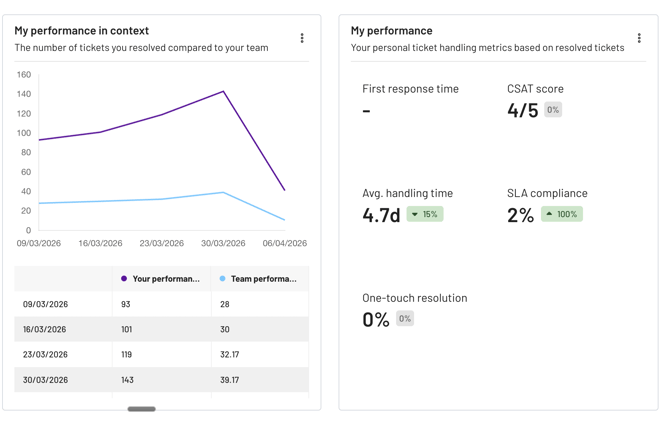
My performance
Summarises your ticket handling metrics for the selected period
- Metrics are based on resolved tickets
- Includes
- First response time
- CSAT score
- Average handling time
- SLA compliance
- One touch resolution
💡 Note: The percentage shown next to each metric indicates how this period compares to the previous period
The goal?
→ Make it easier to start the day with clarity
→ Help each user stay ahead of SLA risk
→ Give you a simple way to track personal performance over time
2. Invoice reversals
.png?width=285&height=162&name=image%20(25).png)
Reversed invoices are now handled consistently across Helpdesk, so the invoice status shown in the Activity panel matches what you see in GenAI responses.
The goal?
→ Show accurate invoice statuses in Helpdesk
→ Keep invoice statuses consistent across UI tiles and GenAI responses
→ Reduce confusion and unnecessary chasing
Statements
1. Custom export enhancements
This month, we’ve been consistently making custom exports more flexible, so you can get the exact format you need with fewer manual tweaks.
What’s new
-
Renaming values in a cell
-
PDF orientation
- Export PDFs in landscape or expand page sizes when you have lots of fields and want to avoid columns getting cut off
-
Styling options
- Font size
- Decimal places for numeric columns
- Text style including bold, italic, underline
💡Note: You can add multiple font styles to a single column in your export for emphasis
-
Single table export
- Export one continuous table of invoice lines instead of splitting into separate ‘Not Received’ and ‘Mismatched’ sections
-
Additional statement columns
- Add extra statement columns to reconciliation exports
The goal?
→ Give you more control over how your exports look
→ Reduce the need for engineering support for export formatting changes
2. Column mapping automation improvements
We’ve also made mapping more reliable by improving header-to-column matching and distinguishing between dates and numbers, so your statements land correctly the first time.
The goal?
→ Reduce manual clean-up
→ Improve statement processing consistency
3. Always-updated ledger date
When a new daily file arrives, we now re-run ledger date automation for unopened statements.
That means the suggested ledger date stays up to date, without you having to step in.
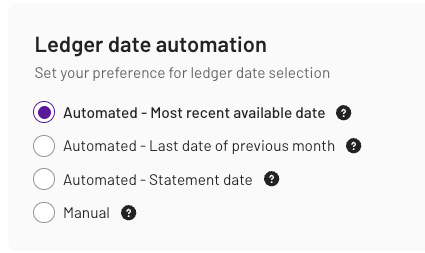
If you use “Automated – Statement date”
If the statement date is identified but isn’t a valid ledger date (because no file was received for that date), we’ll now fall back to the closest available date to the true statement date (rather than the most recent available date) and pause for your confirmation on this step.
Preference order:
- Day before
- Day after
- Two days before
- Two days after
💡 Note: We’ll only fallback to the most recent available date if we can’t find any of the above closest available dates.
If one of these dates is available, we’ll set it as the ledger date.
If a file later arrives for the true statement date, we’ll automatically update the suggested ledger date for unopened statements.
If you use “Automated – Most recent available date”
Your suggested ledger date will keep refreshing for unopened statements as new daily files arrive.
This means higher automation accuracy and 5–20% fewer “stuck” statements in the scenarios where the ledger date becomes valid once the next file lands.
If you use “Automated – Last date of previous month”
If the “last day of previous month” date is identified but isn’t a valid ledger date (because no file was received for that date), instead of always setting the ledger date to the last day of the previous month, we’ll now check nearby dates that are valid ledger dates.
If a nearby valid date is found, we’ll set it and pause you on the step.
If a file later arrives for the true month-end date, we’ll automatically update this suggested ledger date for unopened statements.
The goal?
→ Keep suggested ledger dates accurate as data changes
→ Reduce stuck statements
→ Reduce user edits
→ Keep automation stable and predictable around weekends/holidays
4. Division automation improvements
This month, division detection is more accurate, so you’ll spend less time correcting it manually.
You should notice division automation getting more accurate over time, especially when the division name isn’t clearly shown on the statement file.
The goal?
→ Reduce manual division corrections
→ Improve confidence in automation