
This guide explains how to share and export your reconciliation results with your vendor or your team. Learn how to choose the appropriate format and layout, whether for internal review or vendor communication, and understand the different sections of each export - from identifying differences to confirming paid invoices 🧾
💡Note: you have the option to customise the layout of your document for a fee. Get in touch with your dedicated Customer Success Manager to learn more.
1.1. Export & Share Options:
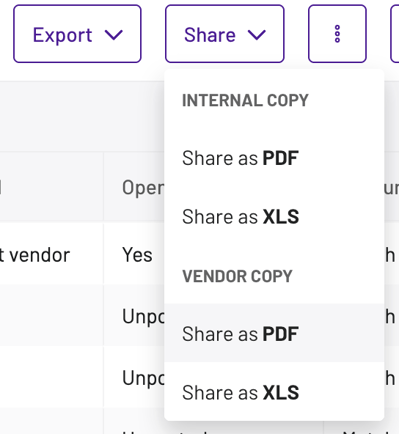
Once you're satisfied with your reconciliation results, you have the option to share and export them. Located on the top right, you'll find two buttons: Export and Share.Clicking the arrow next to either the 'Export' or 'Share' button will reveal a drop-down menu. This allows you to output your statement reconciliation data in either PDF or XLS format.
Two layout options are available:
This version of the export presents a breakdown of invoices with discrepancies under the heading 'Ledger Balance', and those that have been successfully matched and reconciled under 'Statement Balance'.
In the initial 'Ledger Balance' section, Xelix lists 'invoices on statement, not on ledger'. These are the invoices where Xelix has identified differences.
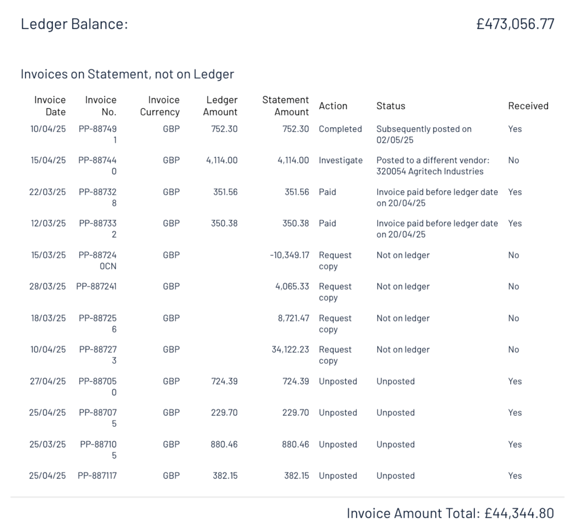
Examples of such invoices include those with missing copies, invoices already paid, unposted invoices, and invoices matched against different vendor divisions.
We've included columns that provide all the necessary data for you to resolve or investigate each invoice:
- Invoice Date
- Invoice No.
- Invoice Currency
- Ledger Amount
- Statement Amount
- Action
- Status
- Received
This is a summary, like the reconciliation results example we looked at in section 3 where we explained how to interpret the reconciliation results table by individual line items and their reasons for difference.
The subsequent section, 'Invoices on Ledger, not on Statement', details invoices that Xelix has identified as having differences.
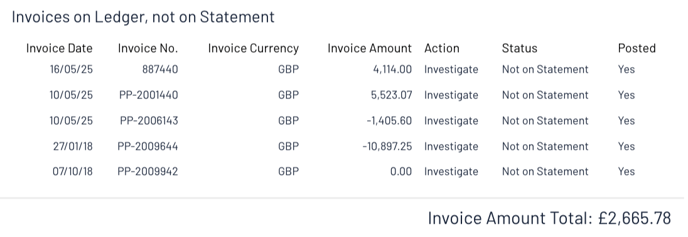
This lists invoices found on your ledger but not found on the vendor's statement.
Following this, the 'Mismatched' invoices section lists invoices where the amounts recorded don't align, clearly showing the difference between the two amounts.
Amount Mismatch
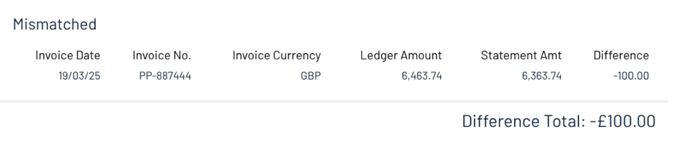
Here we will list all invoices with different amounts recorded in your ledger and vendor statement.
Date Mismatch

Here we will list all invoices with different dates recorded in your ledger and vendor statement.
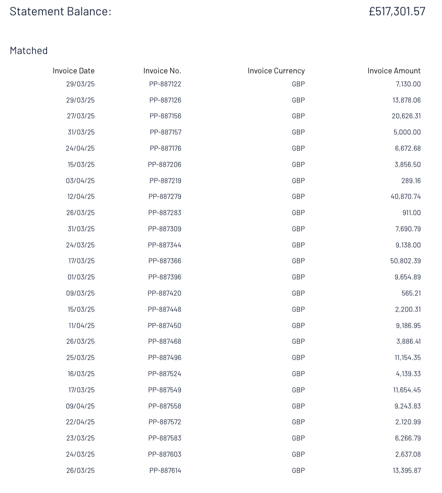
Statement Balance
Moving on to 'Statement Balance', this section presents all the matched invoices that Xelix has confirmed as reconciled. For each of these, we provide the following details:
- Invoice Date
- Invoice No.
- Invoice Currency
- Invoice Amount
The total invoice amount for this section is also provided.
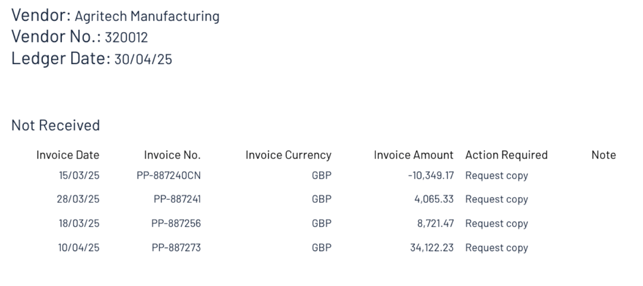
This version of the document is formatted specifically for your vendor's information. It begins by confirming the vendor's details, including their name, vendor number, and the corresponding ledger date (the date the information was received into your system).
The first table highlights the actions the vendor needs to take, labelled 'Not Received'. This clearly indicates which invoice copies they need to send to you, along with the relevant details such as invoice number, amount, and date.
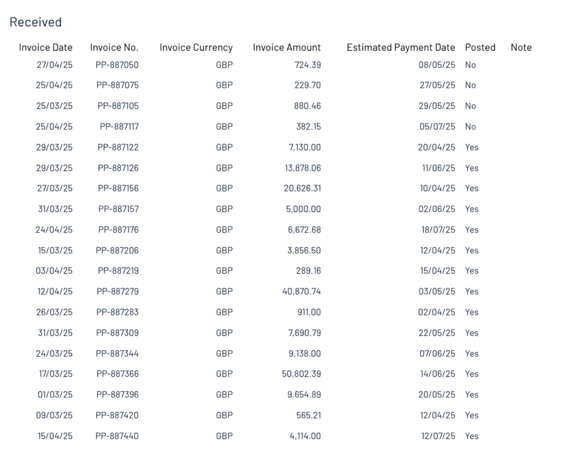
The second table lists all the invoices that have been 'Received' and therefore reconciled. Here, an additional column, 'Estimated Payment Date', is included, drawing this information from the invoice due date in your system.
The final table details invoices that you've already paid, informing the vendor accordingly. This also serves to notify you which invoices have been accounted for, helping to prevent duplicate payments, just as we proactively helped avoid overpayments earlier.
💡 Note: The paid table is based on the status column on the Reconciliation Results (not the Actions column). This means if you update the status for an invoice in the Actions column to ‘paid’, if it is not accounted for ‘paid’ on the status column, it will not show up here as paid.

In each table, there is a 'Note' column that automatically pulls through notes you've entered in the comments sections. Specifically, Comments will be included in the 'internal copy', while Notes to Vendor will be included in the 'vendor copy'. These notes are entered in the respective sections under the 'comments' area on the reconciliation results page.