
Xelix tables provide the following functionality to save displayed information:
Copy Table Information
Each table enables you to copy cell values, with or without the associated column header. Values copied from multiple columns are separated by tabs (also known as tab-separated values).
To copy table cells:
- Identify the cell(s) you want to copy.
- Select the cell(s):
- To select a single cell, click it.
- To select a contiguous range of cells, either:
- Click the first cell you want to copy, then drag your cursor onto the final cell in the range
- Click the first cell you want to copy, then hold the
shiftkey and select the final cell in the range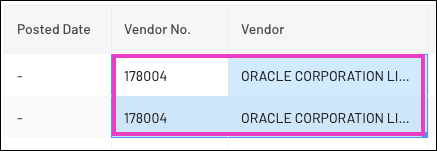
- To select a collection of non-contiguous cells, hold
CMD(Mac) orCtrl(PC) and select each cell you want to copy.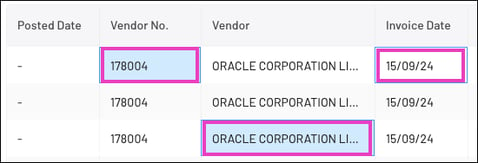
- Right-click any of the selected cells to display the copy menu, and select one of the following:
- Copy: Copies the selected value(s)
- Copy with Headers: Copies both the selected value(s) and associated column header(s)
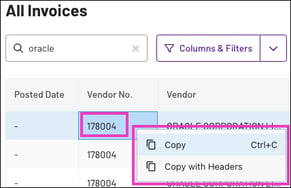
Note: You can use theCMD+C(Mac) orCTRL+C(PC) keyboard shortcut to copy the cell(s) without the associated column header(s).
The highlighted cell(s) briefly turn dark blue to indicate the values were successfully copied.
- Paste the values into your desired application. The following examples show how the pasted values appear:
- Individual cell value:
178005 - Individual cell value with header:
- Individual cell value:
-
- Group of cell values from two rows:
- Group of cell values from two rows:
-
- Group of cell values from two rows with headers:
- Group of cell values from two rows with headers:
Export a Table
The Export button downloads the table as an .xlsx file.
Note: If filters are applied to the table, only the filtered rows visible in the table are exported to the file.
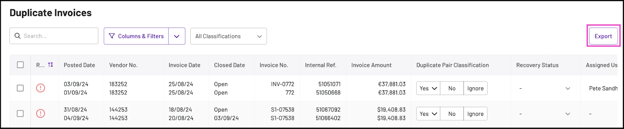
- To begin the export process, simply click on the Export button located in the upper right corner of the table.
- A download notification will appear at the top of the screen, accompanied by a rotating download icon.

- To monitor the status of your download, click the download icon. This will open a sidebar that displays the progress of your download.
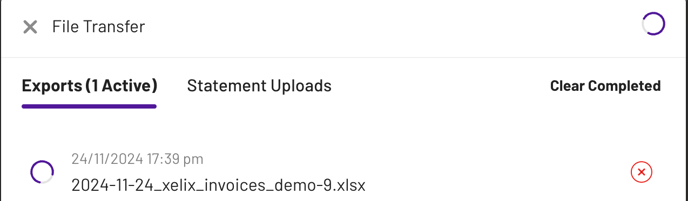
- Once the download is complete, a check mark will appear, confirming that the process has been successfully finished.
