
This month's updates are focused on giving you more efficient ticket management, smarter automation rules and clearer visibility into your reconciliations.
In Helpdesk, you can now update ticket fields inline without opening a separate view, route tickets automatically based on vendor name and configure per-mailbox languages so your team can work in any language. In Statements, your reconciliation automation rate is now visible at every step directly in your dashboard.
Helpdesk
1. New ticket field views
We've redesigned how you interact with ticket fields - more control, less switching.
Compact view
The compact view is your default ticket view, showing your pinned fields with inline editing so you can update fields without leaving the ticket.

Step 1: Open a ticket and hover over any field in the header Step 2: Click the pin icon that appears next to it Step 3: The field locks into your compact view
You can pin up to eight fields. Suggested fields to pin: Assignee, Priority, Category, Due date and SLA.
💡 Note: Click directly on any pinned field to edit it - changes save automatically
Expanded view
Click the expand icon in the ticket header to open the full view. This reveals all ticket fields, your complete reply history, activity log and SLA statistics.

SLA hover
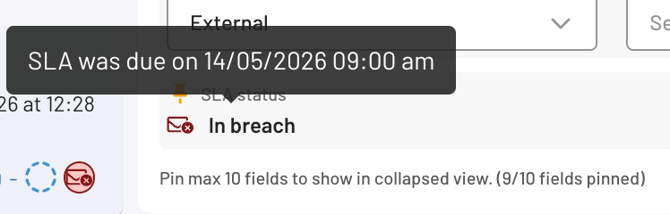
Hover over the SLA field to see the exact breach date and time - so you always know where you stand without opening the full ticket.
What this means for you:
→ More room for email content, less visual noise
→ Fewer clicks to update the fields that matter most
→ SLA clarity without opening the full ticket view
2. Clean mailbox selection
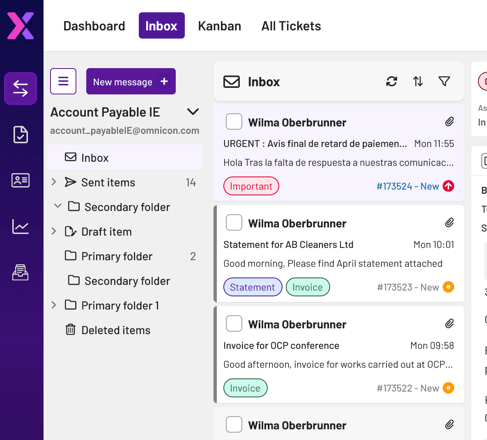
The sidebar now shows one mailbox at a time, with a dropdown to switch between them - so navigating multiple mailboxes is cleaner and faster. Unread counts now reflect tickets rather than messages and folder icons align with Outlook so everything feels familiar.
What this means for you:
→ Less cognitive load for multi-mailbox teams
→ Fewer wrong-mailbox navigation errors
3. Unassigned teams filter
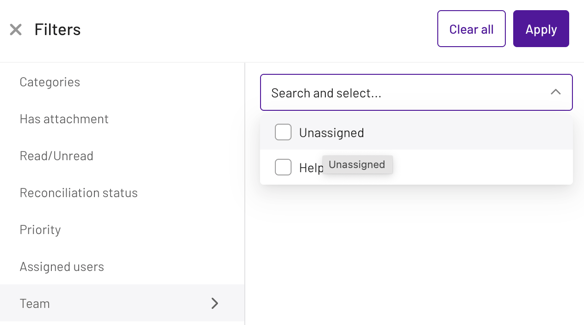
You can now filter for tickets with no team assigned across Inbox, Kanban and All Tickets - so unowned work is never hidden in a busy queue.
What this means for you:
→ Surface tickets that haven't been routed to a team
→ Keep queues organised and fully owned
4. Mailbox target language
Each mailbox can now have its own target language. Incoming emails are automatically translated into the mailbox's chosen language and generated replies are drafted in it too.
💡 Note: Contact your dedicated Account Manager to get this configured
What this means for you:
→ Let teams work in their language of choice, not just English
→ Faster, more accurate responses for multilingual AP teams
5. Smarter triggers
April brought a set of improvements to Helpdesk Triggers - making your automation rules more powerful, more precise and easier to manage.
Vendor name routing
You can now use Vendor Name as a trigger condition with starts with and ends with operators.
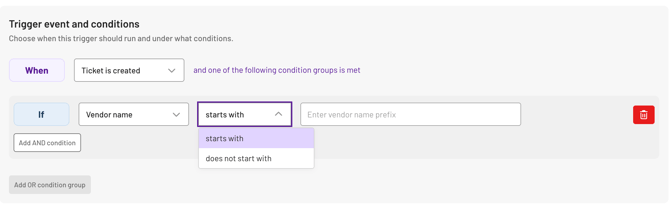
Step 1: Go to Triggers and create a new trigger or edit an existing one
Step 2: Under Conditions, add a new condition and select Vendor Name as the field
Step 3: Choose starts with or ends with as the operator
Step 4: Enter the prefix or suffix - for example, "A" to catch all vendors beginning with A
Step 5: Set your action - for example, assign to a specific team or agent
For example: vendors starting with A-F routed to Team 1, G-M to Team 2 and so on.
💡 Note: Only prefix and suffix matching is supported at this stage
Exact category matching
The new "is only" operator means your trigger only fires on an exact match. Set Category to Invoice and it won't fire for Invoice & Important.
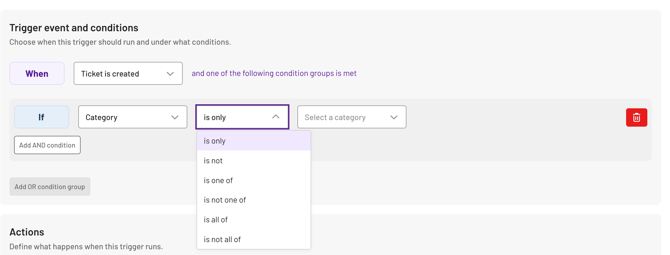
💡 Note: Your existing triggers using "is" have been automatically updated to "is any of" to preserve their current behaviour.
💡 Note: System-generated triggers have also been updated and can't be edited. This applies to multi-select fields only
Trigger search and sort
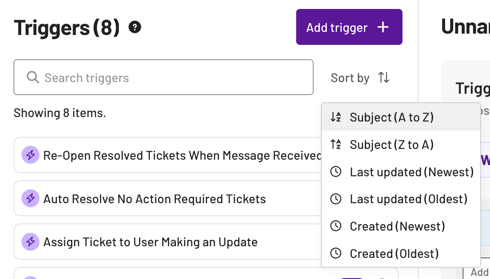
Use the search bar at the top of your Triggers list to find a trigger by name. Sort by name (A-Z) or recency to keep your rule library easy to navigate.
What this means for you:
→ Scalable vendor routing without building one trigger per vendor
→ Precise automation - triggers fire when you expect, not when you don't
→ Faster trigger management for your whole team
Statements
1. Column merging improvements
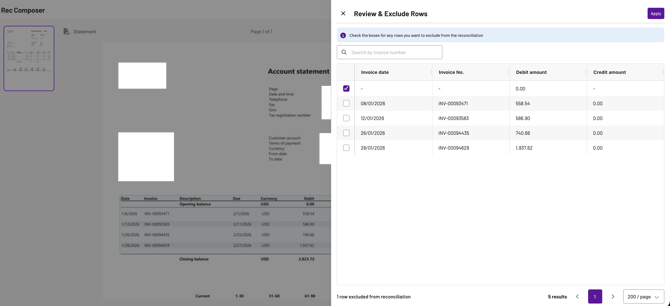
Based on your feedback, we've improved the column-merging logic in Rec Composer to handle edge case PDFs, so that separate statement lines are now less likely to merge into a single row.
What this means for you:
→ More statements read correctly without manual intervention
→ Fewer invoices excluded from the final selection
2. Statement automation flow chart
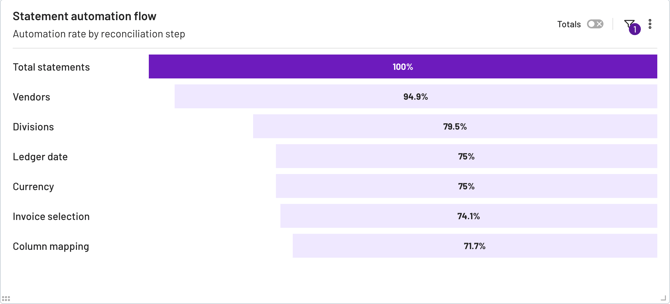
You can now see where your reconciliations are being automated - step by step - directly in your Statements dashboard.
Finding the chart
The automation flow chart is pinned to the bottom of your Statements dashboard. You can drag it anywhere on your dashboard for easier visibility.
Reading the chart
The chart shows your automation rate at each step of the reconciliation process. By default it shows percentages - toggle Totals to switch to absolute numbers.

Use it to:
- See where automation is completing steps without manual input
- Identify which steps still require attention
Click the funnel icon (top right) to filter by date, system, division, vendor group or currency.
💡 Note: Deleted statements, statements still in Info Required and auto-created statements that were never opened are excluded from the calculation
What this means for you:
→ Automation rate visible at a glance - no more waiting for a QBR
→Identify where automation is working and where there are gaps